Introduction
Excellent Data Filler is a modern, privacy-focused browser extension designed to automate repetitive data entry, bulk form submissions, and web data extraction with spreadsheet integration.
Whether you need to fill hundreds of survey responses, populate CRM fields from an Excel sheet, or automate multi-step web workflows, Excellent Data Filler provides an intelligent, flexible, and robust automation engine directly within your browser.
Key Features


.xlsx files and automatically iterate through records row-by-row.


Browser Availability & Download
Excellent Data Filler is built using Manifest V3 and is officially supported across all major Chromium and Gecko browsers:
 |  |  |  |  |
|---|---|---|---|---|
| Google Chrome | Mozilla Firefox | Microsoft Edge | Opera Browser | Apple Safari |
Latest  | Latest | Latest | Latest | Coming Soon |
Direct Store Links
- Chrome Web Store (Official Release)
- Chrome Web Store (Developer / Beta Version)
- Firefox Add-ons (Official Release)
Quick Start Guide
Follow these 4 simple steps to automate your first web form in under 2 minutes:
Step 1: Install & Pin the Extension
- Install the extension from your browser's web store using the links above.
- Pin the Excellent Data Filler icon to your browser toolbar for quick 1-click access.
Step 2: Register a New Site Configuration
- Open the target web page containing the form you want to automate.
- Click the extension toolbar icon or right-click anywhere on the form.
- Select "Insert Site" from the context menu. The extension will automatically detect the page URL and prepare the field mapping schema.
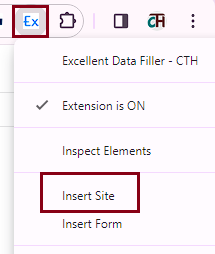
Step 3: Configure Form Fields & Data Sources
- Open the Site Configuration dashboard from the extension popup.
- Match each detected field to your desired data source:
- Static Values: Fixed text, default choices, or boilerplate content.
- Excel Rows (.xlsx): Map columns (e.g.
Column A,Column B) from your uploaded.xlsxfile directly to form inputs. - Dynamic Variables: Timestamps, random numbers, UUIDs, or counter loops.
- Custom Scripting: Apply JavaScript conditions or calculations before insertion.
Step 4: Run Automation & Review Results
- Refresh or navigate to the form page — the extension will automatically detect the site configuration and fill the form fields.
- You can quickly start or pause automation anytime using the keyboard shortcut Alt + Q, or by toggling the extension icon.
- If any field or action needs troubleshooting, open the built-in Extension Logs to review detailed execution steps and error diagnostics.
Pro Tip: When working with large multi-page forms, configure small sections first to verify selector accuracy before running bulk batch imports.
Common Use Cases
Bulk Data Entry Automation
- Customer Registration & Onboarding — Rapidly fill out account creation forms and onboarding portals.
- Survey Submissions — Streamline responses across Google Forms, Microsoft Forms, and SurveyMonkey.
- Support Ticket Creation — Auto-populate repetitive fields in helpdesk systems like Zendesk or Jira.
- Job & College Applications — Save hours by filling identical background questions automatically.
Spreadsheet & Database Workflows
- Row-by-Row Batch Processing — Automatically advance through spreadsheet rows after each successful form submission.
- Data Migration — Migrate legacy spreadsheet records into web-based ERP and CRM applications without manual copy-pasting.
- Automated Report Generation — Extract and assemble periodic form responses into structured Excel reports.
 Quality Assurance & Testing
- Form Validation & Stress Testing — Test edge-case inputs, special characters, and boundary conditions automatically.
- Regression Testing — Validate form submission flows during web application release cycles.
- Web Scraping & Extraction — Extract structured tabular data from web pages into exportable formats.
Need Help & Support?
 Documentation Guides
- Explore the complete Documentation Overview for in-depth setup instructions.
- Learn about supported Field Types & Selectors.
- Master dynamic automation with Functions and Variables.
 Support Channels
 YouTube Channel - Video tutorials and feature demos
 Google Group Forum - Community discussions and tips
 WhatsApp Group - Real-time user support
 GitHub Issues - Report bugs and request new features
 Interactive Sandbox
- Interactive Testing Site - Test your extension rules with live sample forms.
- Developer Build Channel - Try the latest features and pre-release updates.
 Support the Project
- PayPal Donation - Support ongoing development and maintenance.
 Star the GitHub Repository to show your support!