Field Settings
Field Settings provide comprehensive configuration options for individual form fields. When you edit a field, a sidebar drawer opens displaying all available settings for that specific field. Some settings are tailored to particular field types, while others apply across all field types.
Basic Field Settings
Simulate Human Typing Speed
Enables human-like typing behavior in input fields, simulating realistic keystrokes with configurable typing speed.
- Realistic Typing: Mimics natural human typing cadence instead of instant value assignment.
- Speed Control: Adjustable delay in milliseconds between keystrokes.
- Character-by-Character: Types each character sequentially, triggering standard DOM keyboard events.
- Use Cases: Bypassing anti-bot detection systems and testing client-side form validation rules.
Text editor mode
A specialized simulation mode designed specifically for rich text editors (such as Quill, TinyMCE, CKEditor, CodeMirror, Slate, Draft.js, or custom contenteditable containers) and complex inputs that require fine-grained keystroke pacing and human pause behaviors.
| Option | Default | Description |
|---|---|---|
| Min Key Delay (ms) | 50 | Minimum delay in milliseconds between consecutive key presses. |
| Max Key Delay (ms) | 120 | Maximum delay in milliseconds between consecutive key presses. |
| Enable Random Pause | Toggle (ON/OFF) | Enables occasional pauses while typing sentences, mirroring human thought pauses. |
| Pause Chance (0 to 1) | 0.2 | Probability of triggering a pause between keystrokes (e.g., 0.2 = 20% probability). |
| Pause Min (ms) | 300 | Minimum duration of a random pause in milliseconds. |
| Pause Max (ms) | 600 | Maximum duration of a random pause in milliseconds. |
| Human Typing | Toggle (ON/OFF) | Emits authentic keyboard dispatch cycles (keydown, keypress, keyup, input) for rich editor compatibility. |
Use Cases:
- Populating WYSIWYG editors without losing character sequences or breaking rich text styling.
- Simulating realistic typing cadences to avoid triggering aggressive bot heuristics.
- Ensuring real-time word/character count listeners update accurately.
Before filling the value in the field, clear the value of the field
Automatically clears any existing or pre-populated field values before entering new data.
- Clean Slate: Ensures no residual data or placeholder text remains in the input.
- Data Integrity: Prevents concatenating new spreadsheet values onto existing text.
- Consistent Results: Guarantees clean and predictable data entry across repeated runs.
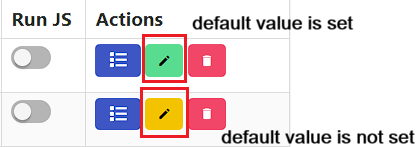
If excel column value is empty then fill this default value
Sets a fallback value when the Excel column cell is empty or missing data.
- Default Value: Specify the fallback string, number, or predefined variable to enter.
- Visual Indicator:
- Green Edit Button: Default value is active and configured.
- Yellow Edit Button: No fallback value configured.
- Site-Wide Override: Can be disabled globally by toggling
Ignore field default valuein Site Settings.
Take the value of this field from another excel column
Links the field's data value to a different Excel column in your .xlsx worksheet, eliminating duplicate columns.
- Data Consistency: Maintain a single column in your spreadsheet (e.g.,
Full Name) and reference it across multiple form fields. - Reduced Redundancy: Avoid creating duplicate columns with identical data in your Excel file.
- Centralized Updates: Changing the value in the master column automatically updates all dependent fields during execution.
Data Processing Settings
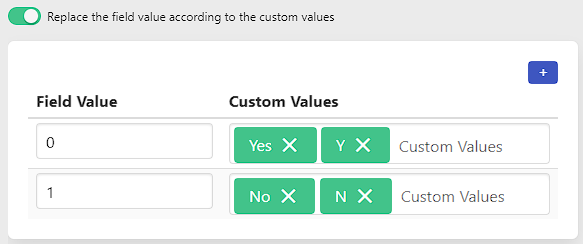
Replace the field value according to the custom values
Transforms spreadsheet values into target form values using custom replacement mappings.
- Field Value: The original value present in the Excel spreadsheet row.
- Custom Value: The replacement value that will actually be filled into the web element.
- Multiple Mappings: Supports defining multiple substitution pairs (e.g.,
"Yes/Y"→"0","No/N"→"1").
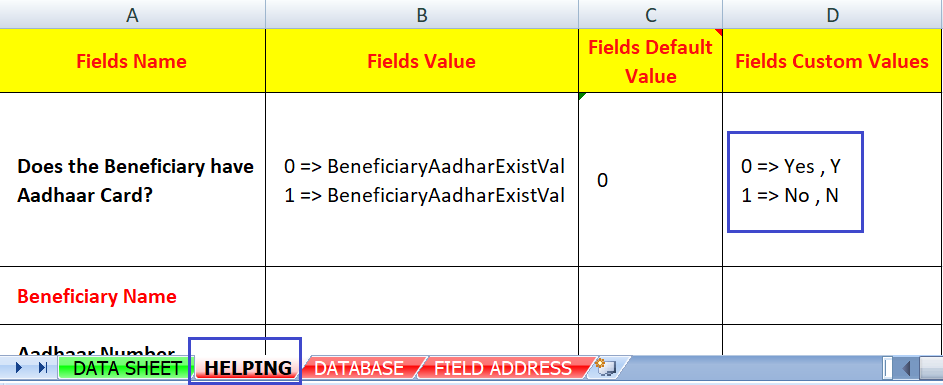
Excel Template Integration: Configured custom mappings automatically appear in the Field Custom Values reference column within the HELPING sheet of downloaded Excel templates.
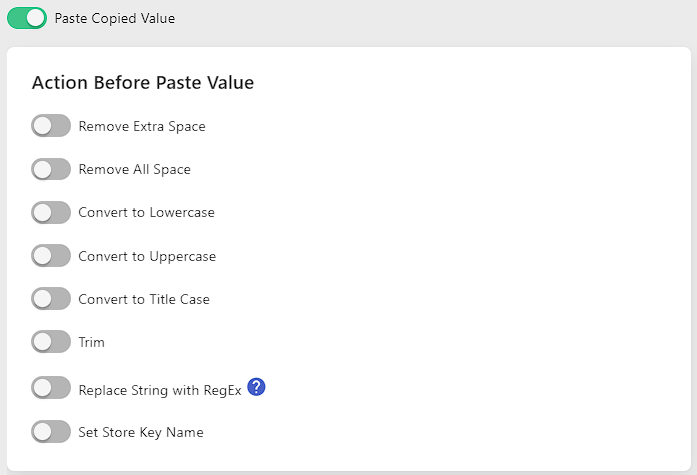
Paste Copied Value
Pastes data previously captured using the Copy Field Type.
- Prerequisites: A Copy Field must execute earlier in the form or routine.
- Text Transformations: Apply casing adjustments, whitespace trimming, or substring operations prior to pasting.
- Custom Processing: Modify the copied buffer dynamically using string functions.
Element & Detection Settings
Selector Query of Element's Child Element
Specifies a secondary selector targeting a nested child element located inside the primary field element.
- How It Works:
- The extension locates the parent container using the field's primary CSS Selector or XPath.
- It then evaluates the child query relative to that parent node (equivalent to
parent.querySelector(childSelector)).
- Benefits:
- Component Frameworks: Target a stable outer wrapper (e.g.,
.custom-input-wrapperor#billing-address) while directing input actions to an inner<input>or[contenteditable]. - Table Grids & Lists: Target a specific row or cell container and dynamically locate the interactive button or input inside.
- Shadow DOM / Web Components: Bridges container boundaries when standard single selectors fail.
- Component Frameworks: Target a stable outer wrapper (e.g.,
Wait until element is found in the page
Pauses automation until the target element is detected in the DOM.
- Dynamic Content: Ideal for Single Page Applications (SPAs) and elements loaded via asynchronous fetch/XHR requests.
- Page Transitions: Prevents execution errors caused by interacting before DOM nodes are mounted.
Wait until element is visible in the page
Waits until the target element is both present in the DOM and visibly rendered on screen.
- Visibility Criteria: Ensures
display !== 'none',visibility !== 'hidden', and element dimensions are greater than zero. - Interaction Readiness: Guarantees modal dialogs, flyout menus, and animations have finished rendering before attempting clicks or text input.
JavaScript & Mouse Event Settings
Trigger Javascript Event
Dispatches native JavaScript events on the target element after data is filled.
- Supported Events:
change,focus,blur,input,keydown,keyup,submit. - Framework Reactivity: Forces modern reactive frameworks (React, Vue, Angular, Svelte) to recognize programmatic DOM updates and trigger state changes.

Trigger Javascript Mouse Event
Simulates specialized mouse interaction events on target elements.
- Supported Mouse Events:
click,mousedown,mouseup,mouseenter,mouseleave,mouseover. - Use Cases: Useful for custom dropdowns, hover triggers, or custom button elements that rely strictly on mouse listener signatures.

Field Chaining Settings
After filling the data of this field, filling the data of another field
Triggers immediate execution of a designated secondary field as soon as the current field operation finishes.
- Direct Chaining: Creates an explicit sequence between two fields, bypassing standard queue order.
- Cascading Dropdowns: When selecting a parent category (e.g., Country) loads child options (e.g., State), chaining immediately executes the child field once the parent updates.
- Search & Select Sequences: Execute a text search field and immediately trigger the corresponding option-selection field.
Conditional Logic Settings
Skip field action if any condition is true
Skips execution of the field when one or more configured conditions evaluate to true.
- Supported Condition Types:
- Element Visibility (Visible / Not Visible)
- Element Existence (Exists in DOM / Does Not Exist)
- Value Matching (Element value matches specific string)
- Text Content Matching (Inner text matches specific criteria)
- Attribute Matching (DOM attribute matches value)
- HTML Matching (Inner HTML matches regex or string)
- Image Filename Matching (Image source name matches criteria)

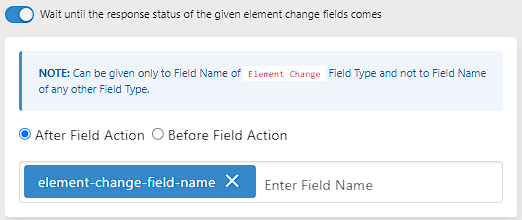
Wait until the response status of the given element change fields comes
Holds field execution until a specified Element Change field resolves.
- Field Reference: Select the designated Element Change field.
- Status Check: Evaluates Before Field or After Field status conditions.
- Conditional Flow: Only proceeds once the element change condition returns success.
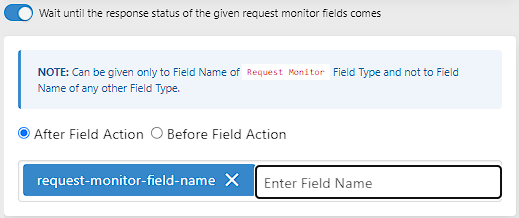
Wait until the response status of the given request monitor fields comes
Waits for a network API request tracked by a Request Monitor field to finish.
- API Synchronization: Ensures asynchronous backend calculations or validation checks complete before filling subsequent inputs.
- Network Verification: Eliminates race conditions on dynamic forms that perform background verification calls.
If element value matches then fill the value otherwise skip the field
Conditionally executes the field action based on whether the current DOM value matches a target pattern.
- Value Match: Executes the field action if the element's existing value matches your criteria.
- Value Mismatch: Skips the field if values do not match.
- Empty Check: Use
''(two single quotes) to specifically check for empty or unpopulated elements.

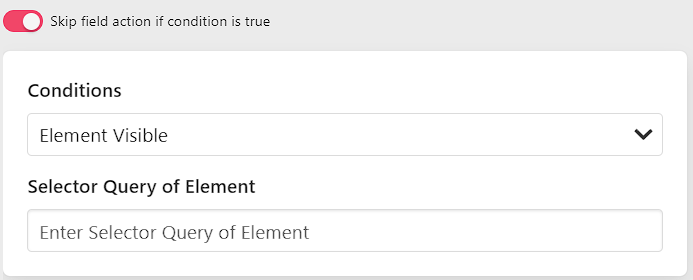
Skip field action if condition is true
Evaluates multi-attribute rules on elements to skip field actions dynamically.
- Element Visible / Not Visible
- Element Exists / Not Exists
- Element Value / Text Matched
- Element Attribute / HTML Matched
- Image File Name Matched
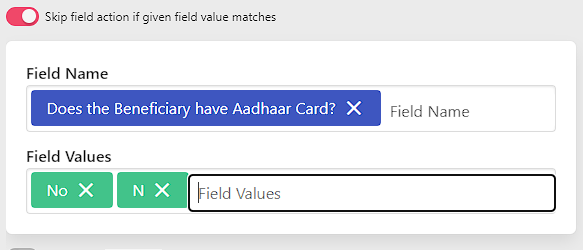
Skip field action if given field value matches
Checks the spreadsheet row value of a different field and skips this field if that value matches specified criteria.
- Field Reference: Choose another field in the form to evaluate.
- Value List: Comma-separated or line-separated values that trigger skipping.
- Example: Skip the "Passport Number" field if the "Has Passport?" field is set to
"No"or"N".
WARNING
This option evaluates values according to the Excel row data. If you are using dynamic variables or multiple values per row, configure individual field conditions instead.
Skip field action if field value matches
Skips the field if its own assigned value matches any item in a configured value list.
- Values List: Define values that will cause this field to be skipped.
- Convert to Lowercase: Enable case-insensitive comparison by normalizing strings to lowercase.
- Empty Value Handling: Use
''to skip the field if its value is blank or empty.
Field Validation Settings
Is this field Required
Marks the field as mandatory for form completion.
- Visual Badge: Displays a red
Requiredbadge next to the field in the configuration table. - Public Key Integration: Evaluated by the
<code v-pre>{FORM-FILLED}</code>key to verify that all mandatory fields contain data. - Submission Safeguard: Prevents premature form submission if mandatory fields fail to fill.
Response Action Settings
Configure automated follow-up actions based on execution outcomes:
Field Success Response Action
Executes a predefined action when this field completes successfully (e.g., clicking a submit button, executing a segment, or setting local data).
See Field Response Action Guide.
Field Error Response Action
Executes fallback recovery routines if the field encounters an error (e.g., reloading the page or triggering alert notifications).
See Field Response Action Guide.
Field Skip Response Action
Executes specific fallback routines whenever this field is skipped by condition rules.
See Field Response Action Guide.
Automation Control Settings
If error response is coming in the field then stop filler
Immediately stops form filling for the active site if this field triggers an error response.
- Critical Fields: Prevents cascading failures when a mandatory field (such as a captcha or account ID) fails.
- Safe Halting: Halts execution cleanly so you can resolve the issue manually.
If success response is coming in the field then stop filler
Stops the automation process as soon as this field finishes successfully.
- Single-Action Automation: Useful when a form only requires completing a single verification or query step.
- Stop on Milestone: Safely halts automation after reaching a final confirmation step.
Advanced Settings
Search Strings and Execute Field Action
Scans the web page for target strings or regex patterns and triggers field execution when found.
- Text Search: Locates specific status messages, validation banners, or text tokens.
- Pattern Matching: Supports exact matching and regular expressions.
Learn more in Search Strings and Execute Field Action.
Execute Action on fields like Row Type
Applies bulk field operations across multiple fields configured with the same row structure.
- Bulk Consistency: Ensures uniform timing and event handling across tabular inputs.
- Fast Configuration: Reduces repetitive manual configuration for grid-based forms.
If this field is being used in a loop and the field has multiple elements
Manages multiple matching DOM elements when executed inside automated loops.
- Index Targeting: Binds the target element index to the active loop counter (
index). - Dynamic Element Collections: Reliably populates repeating table rows, dynamic lists, or repeated field sets.
Do not fill the Status Color, element of this field
Disables the visual status outline and background highlight normally added to elements by the extension upon completion.
- Visual Preservation: Maintains original element styling and border presentation.
- Screenshot Readiness: Prevents green/yellow status outlines from appearing in form captures.
Ignore this field details in the Excel Template
Excludes this field from generated .xlsx templates downloaded via the Excel Template tab.
- Static Fields: Keep button clicks, triggers, and static fields out of data spreadsheets.
- Cleaner Templates: Generates
.xlsxfiles containing only the actual input columns required for data entry.
Timing & Position Settings
Delay Time Before this field is Run
Specifies a waiting delay (in milliseconds) before the extension interacts with this field.
- Fixed Delay: Enter a numerical timeout in milliseconds (e.g.,
500). - Dynamic / Randomized Delay: Use randomized template variables wrapped in double curly braces:
{{random.integer[500][1500]}}Delay Time After this field is Run
Specifies a waiting delay (in milliseconds) after the field action finishes before moving to the next field.
- Asynchronous Processing: Gives web applications time to process client-side calculations, trigger animations, or update dependent controls.
- Dynamic / Randomized Delay:
{{random.integer[1000][2000]}}Position of Field
Configures the execution priority and ordering position of the field within the form runner.
- Select Position of Field: Choose the field's position to place it earlier or later in the execution sequence without recreating the field.
- Sequence Management: Ensures prerequisite fields (such as agreement checkboxes or authentication triggers) execute in the required order.
Specialized Settings
If form is ASPX, remove the input behavior
Special compatibility mode for ASP.NET (.aspx) web forms.
- ASP.NET PostBack Handling: Removes intrusive browser input behaviors and default change event handling that can cause premature form postbacks or page resets.
- Compatibility Assurance: Ensures smooth and reliable data entry on legacy enterprise ASPX systems.
Best Practices
- Test Dynamic Delays: Use realistic before/after delays for AJAX and SPA applications to avoid race conditions.
- Leverage Text Editor Mode: For rich text boxes or WYSIWYG editors, enable Text editor mode with random pauses for optimal compatibility.
- Use Child Selectors for Nested UI: When targeting inputs inside modern web components or tables, use Selector Query of Element's Child Element.
- Clean Excel Templates: Enable Ignore this field details in the Excel Template for click triggers and navigation fields.
Next Steps
 Field Types - Explore supported field types
 Field Response Actions - Configure success and error behaviors
 Variables Reference - Use dynamic random and time variables
 Site Settings - Configure site-wide defaults and overrides