Segment
A Segment is a reusable collection of form fields within a site configuration. Its structure is identical to a standard site form, but it does not run automatically on page load. Instead, a segment is executed on demand by its unique name through automated triggers or field response actions.
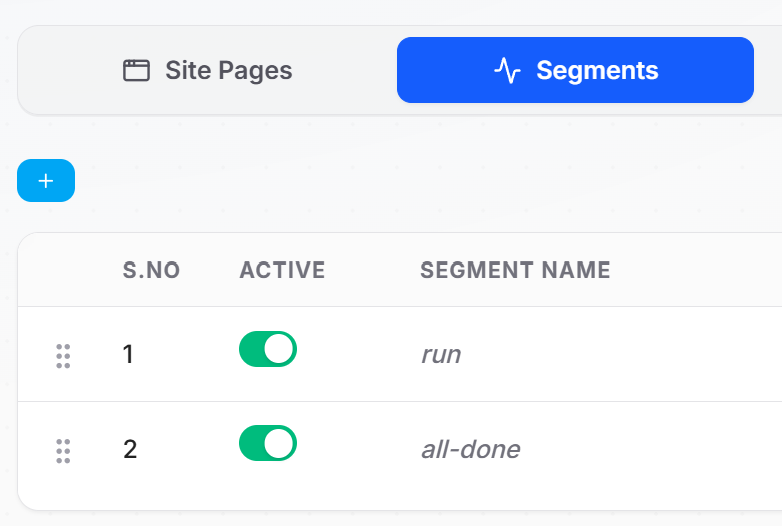
You can access segments by opening your site configuration and switching to the Segments tab next to Site Pages. Click the blue + button to create a new segment. The table displays:
- S.NO: The serial index and drag-handle to reorder segments.
- ACTIVE: An instant toggle switch to activate or deactivate the segment.
- SEGMENT NAME: The unique identifier used to call and execute the segment.
Segment Actions
Each segment row provides management controls and a dedicated actions menu for quick workflow operations.
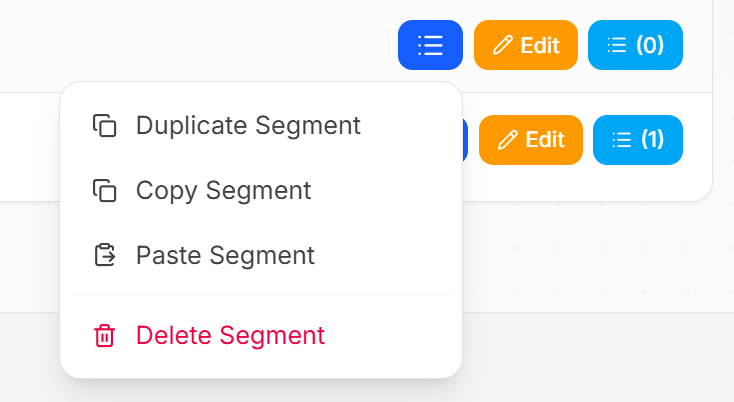
| Action | Control | Description |
|---|---|---|
| Field Count / Manage Fields | Blue Button (n) | Displays the number of fields configured in the segment. Click to open and manage its field list. |
| Edit Segment | Orange Edit Button | Opens the Segment Settings modal to update its name, description, and tab targeting options. |
| Duplicate Segment | Menu Option | Clones the segment along with all its configured fields into a new copy. |
| Copy Segment | Menu Option | Copies the complete segment configuration data to your clipboard. |
| Paste Segment | Menu Option | Pastes a previously copied segment into the active site. |
| Delete Segment | Menu Option (Red) | Permanently deletes the segment and its fields. |
Segment Settings & Tab Options
Clicking the Edit button on any segment opens the configuration modal.
Configuration Fields
- Segment Name *: The unique name used to reference and run this segment (e.g.,
run,all-done). - Segment Description: An optional descriptive note explaining the segment's purpose.
- Active/Inactive: Enable or disable execution for this segment.
View Field Element in Tab
Because segments are independent workflows and are not tied to a single form page URL, the extension does not know by default which browser tab to target when you are building segment fields.
When View Field Element in Tab is toggled ON, two additional configuration options appear:
- Target Page URL: Enter the full URL or path pattern of the page where the segment operates.
- Match Target URL Types: Choose how the target page URL is matched:
- Match with Full URL
- Match with URL pathname
- Match with URL hostname
- Match with RegEx
Testing Field Selectors with Tab Targeting
Once View Field Element in Tab is configured with your target page, you can test and inspect field selectors directly:
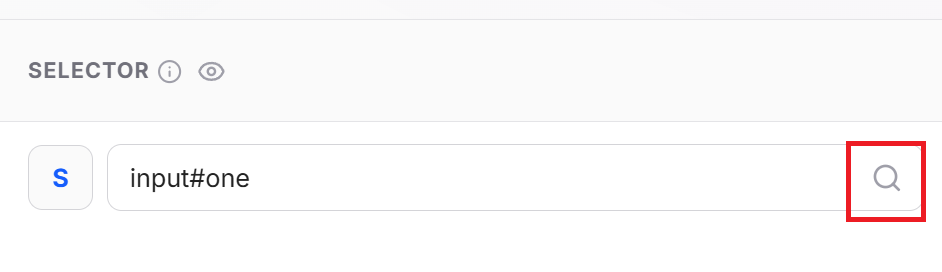
When editing any field inside the segment, click the magnifying glass (Search) icon next to the selector input (e.g., input#one). The extension will locate, verify, and highlight the matching element on the corresponding open browser tab in real time.
Predefined Segments
The extension includes built-in reserved segments designed for specific status bar workflows:
| Segment Name | Description |
|---|---|
{MARK AS SAVED} | Executed automatically when you click the Mark as Saved button on the extension Status Bar. |
How to Execute a Segment
Segments do not execute automatically on page load. You can trigger segment execution in the following ways:
- Field Response Action: Trigger a segment immediately upon a field's success or error condition.
- Execute Segment Field Type: Add an
Execute Segmentstep inside any standard form workflow, optionally passing custom JSON environment variables. - Loop Field Type: Execute a segment repeatedly for each iteration of a table row or list item.
- Status Bar Trigger: Run
{MARK AS SAVED}on demand using the floating status bar.