Settings
The Settings page provides comprehensive control over the Excellent Data Filler extension's behavior, allowing you to customize its functionality according to your specific needs and preferences.
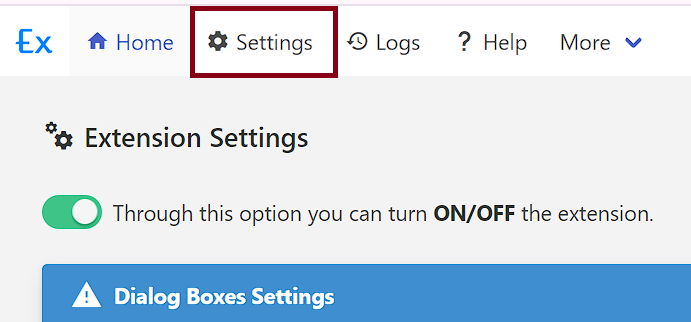
 Extension Settings
Control global extension behavior and automation power state.
Extension Control
The master switch governing all extension activity across your browser.
| Setting | Type | Description |
|---|---|---|
| Extension Active Status | Toggle | Turn automatic filling and extension detection on or off globally. |
Key Details:
- Turn ON / OFF: When toggled OFF, all automated form detection, page-load triggers, and data entry routines are paused globally.
- Keyboard Shortcut: Press Alt + Q anywhere in your browser to instantly toggle the extension status on or off.
- Visual Feedback: The browser toolbar icon dynamically reflects status (vibrant colored icon = ON, grayscale icon = OFF).
Customize Shortcuts
You can customize shortcut key combinations in Chrome anytime by visiting chrome://extensions/shortcuts.
 Dialog Boxes
Manage auto-dismissal rules and automated responses for JavaScript dialog popups (alert and confirm) to ensure smooth, unattended automation.
Dialog Management
Configure automated rules for alert popups and confirmation prompts.
Alert Dialogs
Automatically dismiss JavaScript alert() popups without requiring manual user intervention.
| Setting | Type | Description |
|---|---|---|
| Hide Alert Dialogs | Toggle | Automatically dismiss JavaScript alert() popups without user action. |
| Target URLs for Alert Dismissal | URL List | Enter website URLs and press Enter to add them to the dismissal list. |
How It Works:
- Toggle Hide Alert Dialogs to ON.
- Enter your target website URL(s) into Target URLs for Alert Dismissal and press Enter.
- When an
alert()appears on the specified site, the extension automatically intercepts and dismisses it immediately in the background so form automation continues without interruption.
Confirm Dialogs
Automatically answer JavaScript confirm() dialogs with predefined affirmative or negative decisions.
| Setting | Type | Description |
|---|---|---|
| Hide Confirm Dialogs | Toggle | Automatically answer confirm() dialogs with predefined decisions. |
| Target URLs for Confirm Dismissal | URL List | Enter website URLs where confirmation dialogs should be automatically answered. |
| Match Message Text Patterns | Text Patterns | (Optional) Specify keyword patterns inside confirm dialogs to target specific prompts. |
| Choose Default Action | Action Option | Predefine whether to automatically accept (OK) or dismiss (Cancel) the prompt. |
Unattended Automation
If automated form submission triggers an alert or confirmation prompt verifying that an entry has been completed, registering the site URL under Dialog Management prevents your automation workflow from pausing.
 Insert Site / Form Rules
Configure DOM detection depth, selector generation strategies, advanced parsing filters, and automatic field label cleaning.
Form Detection & Field Rules
Fine-tune how the extension scans, detects, and generates selectors for form elements on a web page.
| Setting | Type | Description | Default / Options |
|---|---|---|---|
| Form Label Position | Number | Sets the relative DOM traversal depth and position used to locate field label text. | 3 |
| Ignored HTML Tags | Tag List | Specify HTML tags to ignore during form scanning (e.g., textarea, select). | None |
| Ignored Input Types | Tag List | Specify input types to ignore during detection. | hidden, reset |
| Preferred Selector Strategy | Dropdown | Choose the primary algorithm for generating element selector queries. | Unique CSS Hierarchy |
Preferred Selector Strategy Options
| Strategy | Description |
|---|---|
| Unique CSS Hierarchy | Generates the most concise, unique CSS selector hierarchy that targets the specific element without unnecessary parent selectors. |
| Full CSS Path | Generates the complete CSS selector path from the document root down to the element. |
| Full Div Hierarchy | Generates a structured CSS path specifically tracing through parent container <div> layers. |
| XPath Expression | Generates robust, standard XPath expressions for precise element location. |
Advanced Parsing Filters
Enhance DOM scanning resilience for single-page applications (SPAs), modern dynamic frameworks, and secured pages.
| Filter Option | Type | Description |
|---|---|---|
Detect Inputs Outside <form> | Toggle | Scans independent container <div> blocks or modern SPA inputs that are not wrapped within standard HTML <form> tags. |
| Check External Libraries | Toggle | Detects and utilizes third-party DOM helper scripts if needed during page inspection. |
| Only Target Visible Forms | Toggle | Ignores hidden or display: none form containers during automatic detection. |
| Only Target Visible Input Fields | Toggle | Skips invisible, collapsed, or zero-height form elements. |
| Allow Right-Click | Toggle | Re-enables the browser context menu on websites that disable right-click interactions. |
| Force Allow Right-Click | Toggle | Strictly overrides hostile JavaScript event handlers blocking right-click access. |
Quick Right-Click Bypass via Toolbar Menu
You can also toggle right-click re-enabling on the active page on the fly: right-click the extension icon in your browser toolbar and click Allow Right Click?.
Clean Field Names
Automatically sanitize and format detected field labels by stripping framework noise, ASP.NET IDs, and unwanted prefixes.
| Setting | Type | Description |
|---|---|---|
| Clean Field Names | Toggle | Master Switch. When enabled, strips unwanted prefixes or special character noise from detected field labels. |
| Remove Substrings from Labels | Tag List | List of specific noise substrings to remove from detected labels. |
| Remove Prefixes from Labels | Text Input | Enter specific prefixes to strip from the beginning of labels. |
Example:
- Raw Web Label / ID:
ctl00$ContentPlaceHolder1$txtName - Substrings Removed:
ctl00$ContentPlaceHolder1$ - Clean Detected Field Name:
txtName
 Form Filler Settings
Configure automation speed, status overlay displays, runtime logging viewers, environment variables, CAPTCHA bypass, and web request monitoring.
Visual Feedback
Configure visual cues, status overlays, and runtime logging during automated filling cycles.
| Option | Type | Description |
|---|---|---|
| Input Color Feedback | Toggle | Highlight input field backgrounds dynamically during fill cycles to visually track active elements. |
| Show Automation Status Bar | Toggle | Display a floating overlay status bar during autofill runs. |
| Show Log Messages in Status Bar | Toggle | Output live execution step messages directly on the status bar. When turned ON, log messages are visible in the status bar and attached popover; otherwise, they are not visible. |
| Show Extension Logs Viewer | Toggle | Show a floating sidebar button on the web page to inspect live runtime log traces and debugging events. |
Automation Status Bar
When Show Automation Status Bar is enabled, an interactive toolbar renders on target web pages providing real-time progress, navigation, and live execution feedback.

Mark as Saved
Clicking the Mark as Saved button on the status bar triggers the {MARK AS SAVED} segment for the current entry row if configured in the form.
Key Status Bar Capabilities:
- Slim & Modern Design: Status bar that is sleek, unobtrusive, and fully mobile-responsive.
- Position & Theme Toggle: Easily toggle the bar's position between Top and Bottom, and switch between Dark and Light themes for optimal contrast on any website.
- Minimize / Float Dock Mode: Collapse the full toolbar into a compact floating pill docked at the corner of the screen when unobstructed page visibility is needed.
- Attached Logs Popover: Clicking on the logs section opens an attached flyout card directly above or below the bar to inspect live runtime execution traces (visible only when Show Log Messages in Status Bar is turned ON; otherwise not visible).
Status Bar Controls & Features:
| Control | Description |
|---|---|
| Current Entry Index | Displays the current active row number and total rows count (e.g. Entry: 5 / 100). |
| Previous Row | Navigate to and fill the previous data row. |
| Next Row | Navigate to and fill the next data row. |
| Mark as Saved | Executes the {MARK AS SAVED} segment. |
| Attached Logs Popover | Click to open a live flyout card displaying recent execution steps and error logs (visible only when Show Log Messages in Status Bar is turned ON; otherwise not visible). |
| Dock / Minimize | Collapses the status bar into a compact floating pill at the corner. |
| Position / Theme Toggle | Switch docking edge (Top/Bottom) or color theme (Dark/Light). |
Close Status Bar Programmatically
To dismiss or close the status bar from the web page during automation (for example, prior to capturing full-page screenshots or upon finishing form tasks), you can use the closeStatusBar predefined function.
Show Extension Logs Viewer
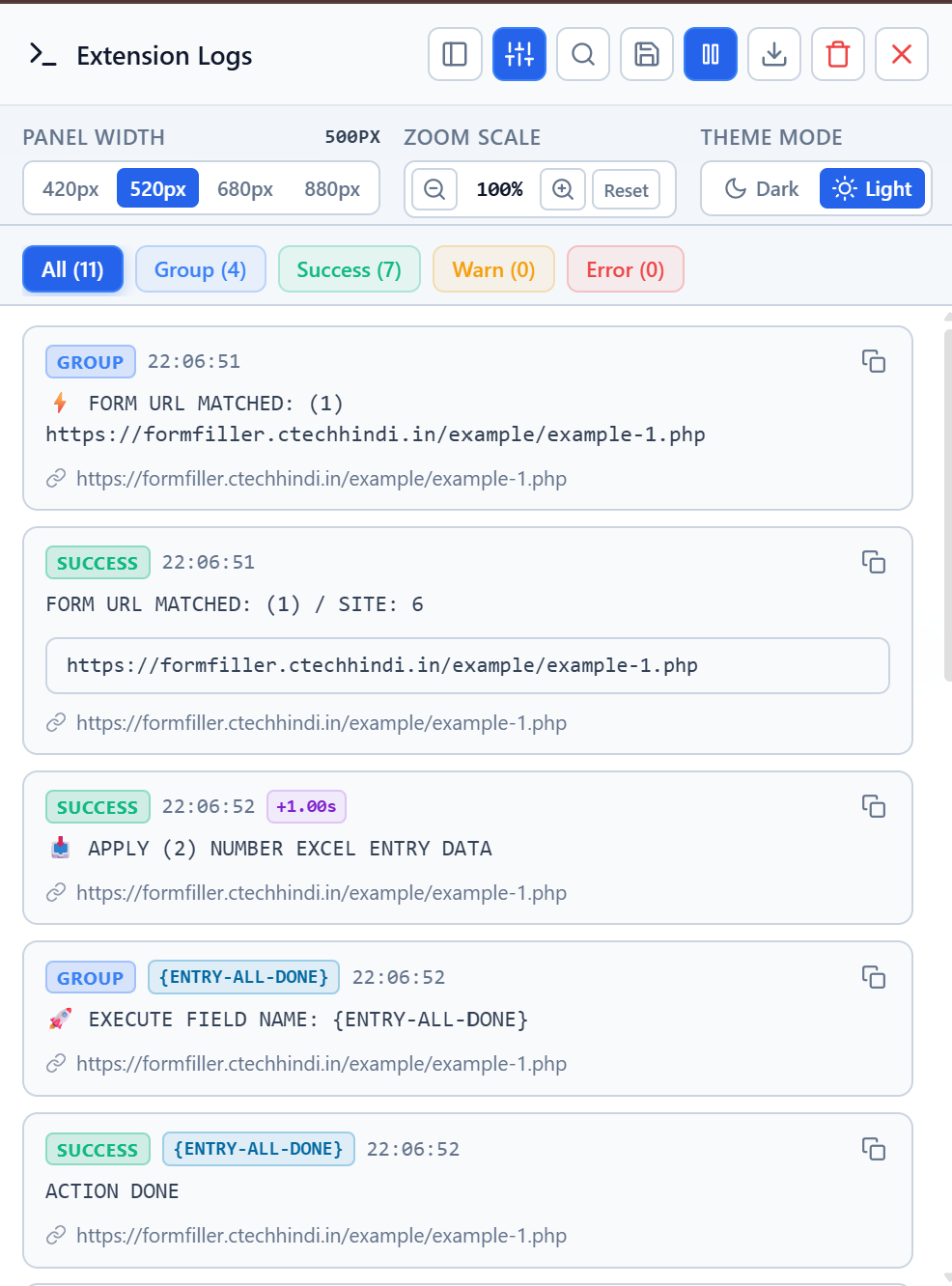
When enabled under Visual Feedback, a floating sidebar button appears on active web pages, allowing you to open the dedicated Extension Logs runtime viewer directly over the page without opening browser developer tools.
Top Toolbar Controls
The header bar provides quick actions to control the live log stream and manage records:
| Action | Description |
|---|---|
| Dock / Sidebar Mode | Toggle the panel between floating drawer and docked sidebar layouts. |
| Search | Real-time text search to quickly filter logs by keyword, field name, or URL. |
| Pause / Resume | Freeze log streaming to closely inspect a specific event while automation is actively running. |
| Download / Export | Download the current session log records as a file for troubleshooting. |
| Clear Logs | Clears the active log feed from the viewer. |
| Close | Dismisses the slide-over viewer. |
Panel Customization
Customize the viewer to fit your monitor resolution and reading preferences:
- Panel Width Presets: Select between 420px, 520px, 680px, and 880px for optimal reading space.
- Zoom Scale: Adjust text sizing using the zoom controls (
-,+,Reset) with percentage scale feedback. - Theme Mode: Seamlessly switch between Dark and Light themes.
Log Filter Categories
Pill tabs at the top of the feed allow instant filtering by event type with live count badges:
- All: Displays all recorded logs sequentially.
- Group: Shows execution segment boundaries, form URL matching blocks, and loop cycles.
- Success: Highlights successful field matches, inputs, and completed automated actions.
- Warn: Identifies non-critical warnings or skipped field conditions.
- Error: Immediately flags missing DOM elements, timeout errors, and submission failures.
Detailed Log Cards
Each log entry is rendered as an interactive card containing:
- Status & Segment Badges: Clear badges denoting level (
SUCCESS,WARN,ERROR,GROUP) and active segments (e.g.{ENTRY-ALL-DONE}). - Precise Timing: Exact timestamp down to the second, plus relative execution duration badges (e.g.
+1.00s). - One-Click Copy: Copy card contents and diagnostic payload directly to your clipboard.
- Source URL: Clickable link to the exact web page where the event occurred.
Speed & Performance
Configure automation execution speed, DOM navigation monitoring, and layout positions.
| Setting | Type | Description | Default / Options |
|---|---|---|---|
| Status Bar Position | Dropdown | Sets the placement of the floating status bar on the page. | Bottom, Top |
| URL Change Monitoring Mode | Dropdown | Choose how the extension detects and handles page navigation or dynamic URL transitions. | SPA / Dynamic History changes (Sync) |
| Form Filling Speed | Dropdown | Controls execution delay between sequential field actions. | Fast (Instant execution) |
URL Change Monitoring Modes
| Mode | Best Used For |
|---|---|
| SPA / Dynamic History changes (Sync) | Single Page Applications (React, Vue, Angular) where the URL updates dynamically via the History API without a full page reload. |
| SPA / Dynamic History changes (Async) | Complex SPAs that render DOM elements asynchronously after a URL route or hash transition. |
| Standard Page reloads (Sync) | Traditional multi-page web applications that perform full page reloads on navigation. |
Form Filling Speed Options
| Speed Option | Behavior |
|---|---|
| Fast (Instant execution) | Fills fields sequentially with zero artificial delay for maximum automation throughput. |
| Medium (0.3s delay) | Adds a 300ms delay between field operations to ensure reactive input handlers register values. |
| Slow (2s delay) | Adds a 2-second delay between field operations for slow web forms or visual demonstrations. |
| Randomized delay range | Introduces human-like randomized delays between fields within a configurable range. |
Randomized Delay Range Settings
When Randomized delay range is selected, the following duration parameters appear:
| Field | Type | Description | Example Value |
|---|---|---|---|
| Min Delay (ms) | Number | Minimum delay time in milliseconds. | 200 |
| Max Delay (ms) | Number | Maximum delay time in milliseconds. | 1000 |
Environment Variables
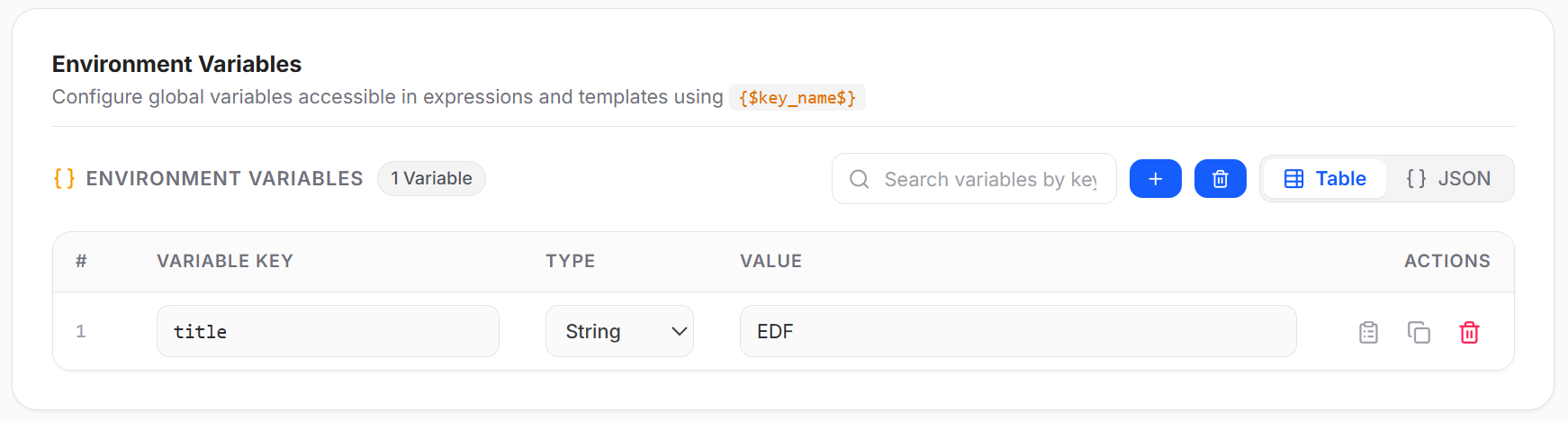
Configure global variables accessible in expressions, templates, and field values using {$key_name$} syntax.
Key Features:
- Table & JSON Views: Switch seamlessly between a structured table view and a direct JSON editor.
- Search by Key: Quickly locate variables using the search filter.
- Data Types: Supports typed values such as
String,Number,Boolean, andObject. - Row Actions: Copy value, duplicate variable row, or delete variable.
| Column | Description |
|---|---|
| Variable Key | The unique identifier used to reference the variable (e.g. title). |
| Type | The variable data type (String, Number, etc.). |
| Value | The value assigned to the variable. |
| Actions | Quick action buttons to copy, duplicate, or delete the variable. |
Usage Example:
Reference environment variables in field values or settings using curly brackets:
{$title$}Site-Specific Environment Variables
Variables defined here apply globally across all websites. If you need variables isolated to a specific website, configure Site Environment Variables inside that site's settings. Site-level variables automatically take precedence if the same key name is used.
Auto-Solve CAPTCHAs
Configure automated CAPTCHA solving services to bypass verification challenges during form filling cycles.
| Setting | Type | Description |
|---|---|---|
| Auto-Solve CAPTCHAs | Toggle | Master Switch. Bypass verification challenges automatically during form filling cycles. |
| Service | Provider | Supported CAPTCHA solving provider (e.g. 2Captcha). |
| API Key | Secret Key | Your provider account API key (with visibility toggle to reveal/hide). |
| Solve Cloudflare Turnstile challenges | Toggle | Automatically detect and solve Cloudflare Turnstile verification challenges. |
Get API Key
Obtain your API key from your 2Captcha account dashboard.
Priority Hierarchy
CAPTCHA settings can be configured at three levels:
- Field Settings (Highest Priority)
- Site Settings
- Global Settings (Configured here)
Related Documentation
Monitored Request URLs (Match Patterns)
Specify URL match patterns to track network requests across targeted domains.
| Setting | Type | Description |
|---|---|---|
| Monitored Request URLs | Tag Input | Enter URL match patterns (e.g. https://*/*) and press Enter. |
Match Pattern Examples:
https://*/*— Targets all HTTPS domains.*://mail.google.com/*— Targets Gmail specifically.
Note
Used by the Web Request Completed and Request Monitor field types to monitor and capture background HTTP requests.
 Microsoft Form Rules
Configure Microsoft Forms integration and field selector customization for optimal compatibility.
| Field Options | Description | Example Values |
|---|---|---|
| Import Settings | Import Microsoft Form configuration | JSON configuration file |
| Export Settings | Export current Microsoft Form settings | Downloadable settings file |
| Custom Selector Query | Override default field selectors when they don't work | input[name="fieldName"], #customField |
How to Use:
- Import Settings: Upload a previously exported Microsoft Form configuration
- Export Settings: Download current settings for backup or sharing
- Custom Selector Query: Enter custom CSS selectors for problematic fields
 Local Extension Server
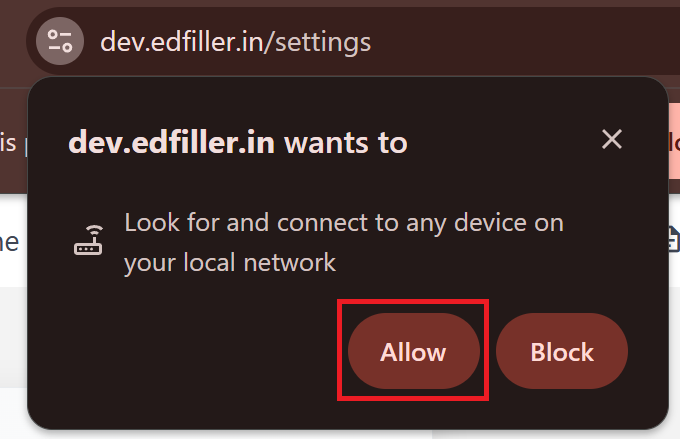
Configure the connection to your local server to enable advanced automation features, such as email operations and local data processing. See Local Server for more details.
Server Details
Manage your local server authentication and monitor connection health.
| Option | Description |
|---|---|
| X-API-Token | Enter the API token provided by your local server. You can generate this at http://127.0.0.10:8080/settings/api. |
| Check Server Status | Click this button to verify if the extension can communicate with your local server. |
| Remove server connection | Click this to clear the API token and disconnect from the local server. |
Connection Status: The settings page displays "Server is Connected: Yes/No" in real-time to indicate the current status of the link between the extension and your local server.
Response Details: When you check the server status, a detailed JSON response from the server is displayed, allowing you to verify the server's health and uptime.
 Export / Import Data (Data Management & Backups)
The Data Management & Backups dashboard provides centralized controls to export, import, and manage your extension configurations across different browsers or backup storage.
Import Site Configurations
Restore previously saved site configurations, form definitions, and field rules from a JSON backup file.
| Action | Control | Description |
|---|---|---|
| Choose JSON File to Import | File Upload Button | Select an exported .json configuration file from your computer to restore your site definitions and field mappings. |
Safe Import
Importing a JSON configuration updates and merges existing site configurations without wiping unrelated extension settings.
Export Site Backup
Export your configurations into standardized .json backup files for safe keeping, version control, or migrating to another browser profile.
| Action | Format | Description |
|---|---|---|
| Backup All Sites | .json File | Save all active sites, registered forms, and field configurations into a single JSON backup. |
| Backup Archived Sites | .json File | Save all archived sites and inactive forms into a separate dedicated JSON backup file. |
Note
Backup files contain site definitions, form structures, field rules, and selector configurations. Backups do not include uploaded .xlsx spreadsheet rows, which are managed independently per session.
Danger Zone
Permanent deletion actions to wipe site storage. Exercise extreme caution when using these options.
| Action | Severity | Description |
|---|---|---|
| Delete All Sites | Critical | Permanently wipes all active site configurations, forms, and fields from extension storage. |
| Delete Archived Sites | Critical | Permanently wipes all archived sites and stored historical configurations from extension storage. |
Irreversible Actions
- Always Backup First: Generate a Backup All Sites JSON export before deleting any configurations.
- Permanent Loss: Deleted configurations cannot be recovered once removed from storage.
- Prefer Archiving: If a site is no longer actively needed, move it to the Archive rather than permanently wiping it.