Context Menu
Access core extension actions, DOM element inspection tools, and selector copy helpers directly from your browser's right-click context menu.
Overview
The Excellent Data Filler context menu is accessible in two distinct contexts:
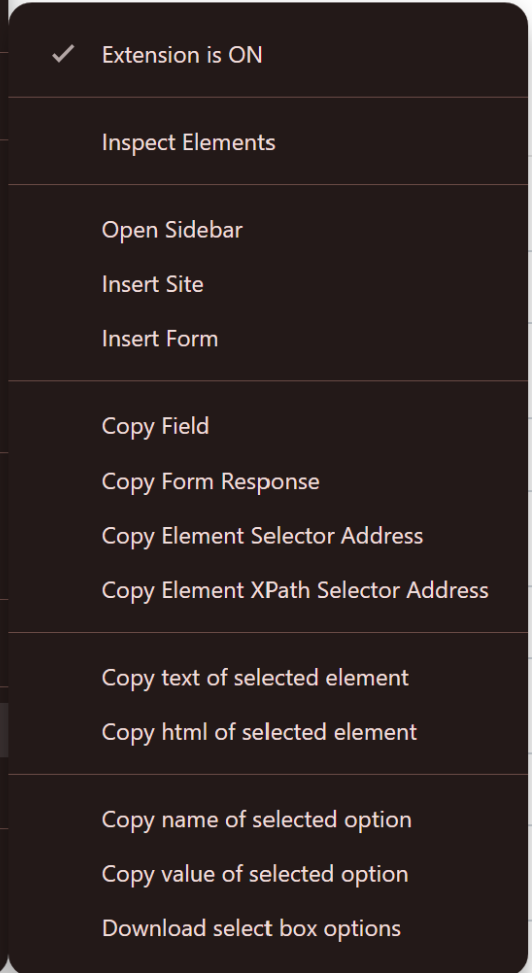
- Page Context Menu: Right-click anywhere on an active web page to inspect elements, configure forms, or copy element selectors.
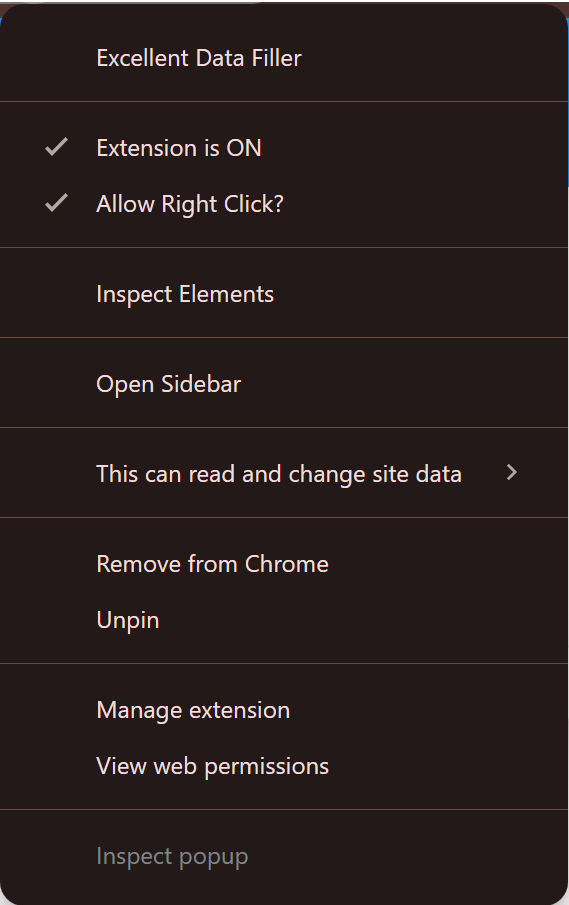
- Toolbar Icon Context Menu: Right-click the extension icon in the browser toolbar for quick status controls, permission management, and right-click unblocking.
Web Page Context Menu
Toolbar Icon Context Menu
Context Menu Actions Reference
| Action | Location | Shortcut | Description |
|---|---|---|---|
| Extension is ON | Page & Toolbar | Alt + Q | Master toggle showing active status (✓). Click to toggle automation on or off. |
| Allow Right Click? | Toolbar Only | — | Forcefully re-enables right-click menus on sites that disable right-clicking. |
| Inspect Elements | Page & Toolbar | Alt + Shift + I | Launches the interactive Element Details inspection modal. |
| Open Sidebar | Page & Toolbar | — | Opens the extension sidebar (Under Development). |
| Insert Site | Page Only | Alt + Shift + S | Registers the active website as a new automation site. |
| Insert Form | Page Only | Alt + Shift + F | Adds a new form to the current active site. |
| Copy Field | Page Only | Alt + C | Copies selected field(s) configuration from the extension. |
| Copy Form Response | Page Only | Alt + Shift + R | Copies element text, selector, XPath, and URL for response rules. |
| Copy Element Selector Address | Page Only | Alt + Shift + C | Copies the CSS selector of the right-clicked element. |
| Copy Element XPath Selector Address | Page Only | Alt + Shift + X | Copies the XPath expression of the right-clicked element. |
| Copy text of selected element | Page Only | Alt + Shift + T | Copies the visible text content of the element. |
| Copy html of selected element | Page Only | Alt + Shift + H | Copies the outer HTML source code of the element. |
| Copy name of selected option | Page Only | Alt + Shift + N | Copies the visible text label of a <select> option. |
| Copy value of selected option | Page Only | Alt + Shift + M | Copies the value attribute of a <select> option. |
| Download select box options | Page Only | — | Downloads all options of a dropdown menu as a data file. |
Open Sidebar Under Development
The Open Sidebar menu item is currently under active development and will be fully enabled in an upcoming version.
 Inspect Elements
The Inspect Elements tool (Alt + Shift + I) provides a built-in DOM inspector designed specifically for form automation setup without requiring browser DevTools.
1. Info Tab
Inspect DOM element metrics, hierarchical positions, and structural breadcrumb paths.
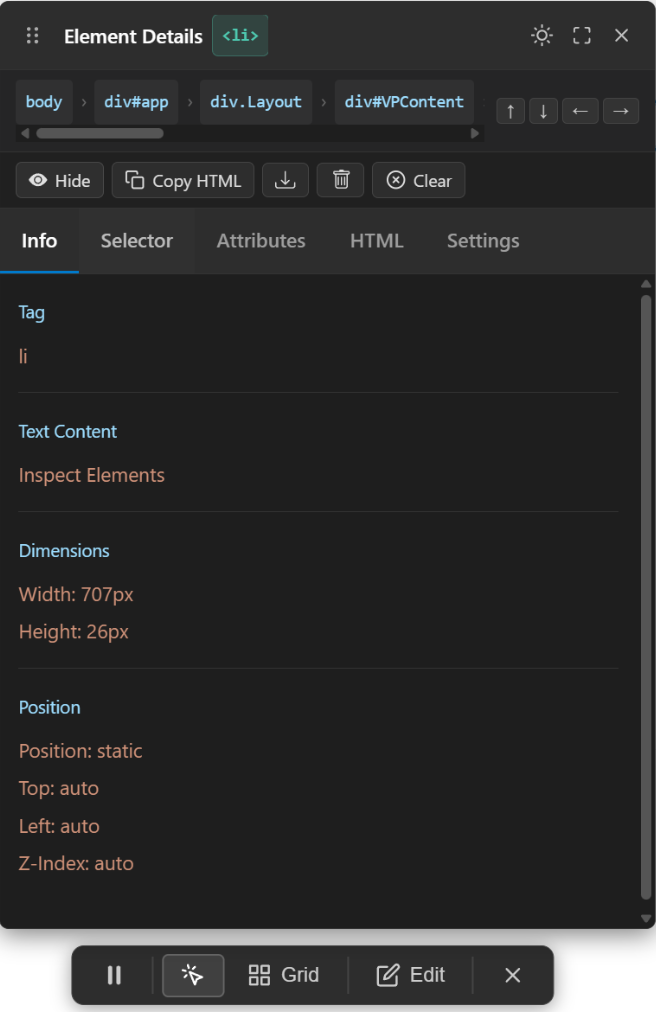
- Element Tag & Classes: Identifies the HTML element tag (e.g.,
<li/>) and active classes. - Breadcrumb Navigation: Shows full DOM hierarchy (
body > div#app > div.Layout > div#VPContent) with directional step navigation buttons (↑,↓,←,→). - Text Content: Real-time extracted text content of the element.
- Dimensions & Positioning: Displays pixel dimensions (
Width: 707px,Height: 26px) and CSS positioning (Position: static,Top,Left,Z-Index). - Header Actions: Quick controls to Hide, Copy HTML, Download element, Delete, or Clear.
- Docked Toolbar Controls:
- Pause / Freeze: Freezes dynamic page states (tooltips, dropdowns) for inspection.
- Element Picker: Click to highlight and inspect any other element on the page.
- Grid Overlay: Toggles alignment grid overlays.
- Edit: Edit element attributes directly.
- Close: Dismisses the inspector overlay.
2. Selector Tab
Generate, test, and copy unique CSS selectors and XPath expressions.
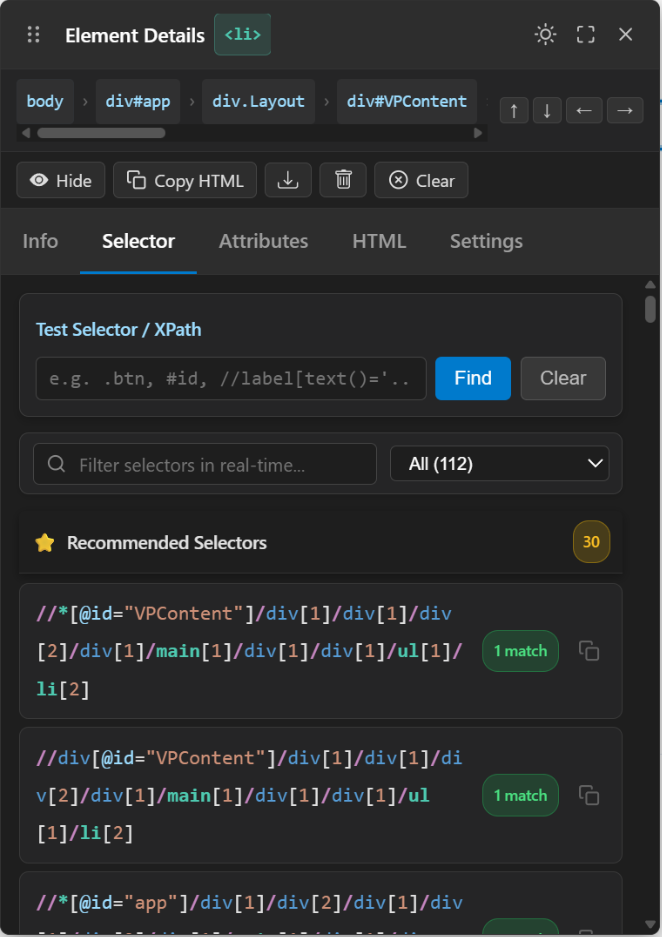
- Live Selector / XPath Tester: Enter any custom selector query or XPath expression and click Find to verify matches in real-time.
- Real-Time Selector Filter: Search and filter through all discovered selectors with category counts (e.g.,
All (112)). - Recommended Selectors: Displays high-priority selectors optimized for uniqueness and stability, complete with match count badges (e.g.,
1 match) and a one-click clipboard copy button.
3. Settings Tab
Customize the appearance and behavior of the inspector overlay.
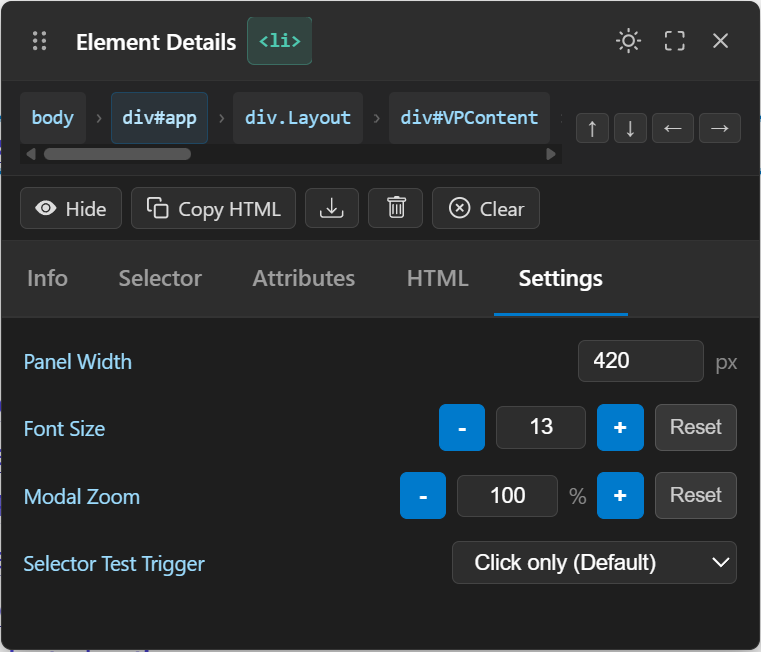
- Panel Width: Customize the inspector modal width in pixels (default:
420px). - Font Size: Increase or decrease inspector text sizing with
-,+, andResetcontrols. - Modal Zoom: Adjust inspector magnification percentage with
-,+, andResetcontrols. - Selector Test Trigger: Configure how selectors are tested (default:
Click only (Default)).
 Allow Right Click?
Some protected or restricted websites use custom JavaScript event listeners to disable right-clicking, preventing users from opening browser context menus or inspecting form elements.
How to Bypass Right-Click Restrictions
- Right-click the Excellent Data Filler icon in the browser toolbar.
- Click Allow Right Click? (a checkmark
✓confirms activation). - The extension overrides hostile event handlers, allowing you to right-click and use extension features freely on the page.
Global Configuration in Settings
You can also permanently automate right-click bypasses across all sites by configuring Allow Right-Click and Force Allow Right-Click under Global Settings > Advanced Parsing Filters.
 Copy Operations & Quick Actions
Copy Form Response (Alt + Shift + R)
Captures the complete diagnostic payload of an element to configure form submission response rules:
{
  "text": "Success",
  "selector": "#status-message",
  "xpath": "//div[@id='status-message']",
  "url": "https://example.com/form"
}
Copy Field (Alt + C)
Copies one or multiple field configurations directly from the extension interface to paste into another form or site.
Dropdown Option Helpers
- Copy name of selected option (Alt + Shift + N): Copies the user-facing option label.
- Copy value of selected option (Alt + Shift + M): Copies the underlying form submission
value. - Download select box options: Exports all dropdown entries from a
<select>element into a structured file for template building.

