
Capture Web Request
The Capture Web Request field type monitors background HTTP network traffic in the browser, waits for a specific request to finish executing, optionally triggers an element click, validates status codes, and captures the request response.
Before using this field, ensure the target web request URL pattern is registered in the extension Settings so the background network listener can observe matching traffic.
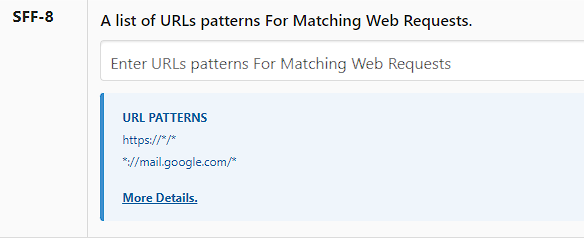
Field Options
Request URL Type
Select how the extension evaluates the target web request URL:
- Match with Full URL — Matches the complete URL string (including protocol, host, path, and query parameters).
- Match with URL pathname — Matches specifically against the URL pathname (e.g.,
/api/v1/ordersor/checkout/submit). - Match with URL hostname — Matches specifically against the domain or hostname (e.g.,
api.example.comorbackend.service.net). - Match with RegEx — Applies a regular expression pattern to match dynamic URLs.
Request Method
Specify the HTTP method of the request to monitor:
GETPOSTPUTPATCHDELETEOPTIONSHEAD
Timeout to Match Web Request (Minutes)
The maximum duration (in minutes) the automation will wait for the target web request to appear. If no matching request is captured within this interval, the field returns False and logs a timeout.
Delete the web request data before capture?
- ON: Clears previously captured web request data from background storage before starting the monitoring/capture cycle for this field. Useful when executing repetitive loops or ensuring stale data is purged.
- OFF: Retains existing captured request data prior to starting the capture.
Delete the web request data after completing this field?
- ON: Clears the captured request data from the extension background storage once this field finishes. Recommended when monitoring standalone requests.
- OFF: Retains the captured request data in storage. Recommended when subsequent fields need to inspect or extract data from the same network request.
If you want to check the Request Status Code
A switch to validate HTTP response status codes.
- Enter Request Status Code — When enabled, specify the expected HTTP status code (e.g.,
200,201,204). The field only succeeds if the captured response matches this code.
Do you want to save the request response in an Excel sheet?
When enabled, the captured web request response payload is saved directly into your Excel (.xlsx) output sheet.
Do you want to click on an element?
A switch that allows you to click a button or interactive element on the page before listening for the web request. This automates the action (such as clicking a "Submit" or "Fetch Data" button) that triggers the network request.
- Enter element Selector/Xpath — When the click action is enabled, provide the CSS selector (e.g.,
#submit-btn,.btn-primary) or XPath (e.g.,//button[@id='submit']) of the target element to click.
Are you using custom javascript function for return field responses?
When enabled, the extension passes all captured background requests (output.response) to your custom JavaScript listener on each poll interval, allowing you to implement custom matching logic, filter dynamic requests, and return custom response data.
Custom JavaScript Matching Example
- Add a JavaScript Code field positioned directly above this field.
- Enable Are you using custom javascript function for return field responses?.
- Register the event listener:
$fns.field.listener('EDF-FIELD-CAPTURE-WEB-REQUEST', (output, callback) => {
  // output.response is an array of all captured web requests
  const requests = output.response;

  // Custom match condition (e.g., URL pathname, status code, payload)
  const matchedRequest = requests.find(req => req.url.includes('/api/orders') && req.statusCode === 200);

  if (matchedRequest) {
    // Match found: complete the field with desired data
    callback({ status: true, message: 'DONE', data: matchedRequest });
  } else {
    // Not matched yet: continue waiting on next poll interval
    callback({ status: false, message: 'WAIT' });
  }
});

$fns.return('1');
Next Steps
 Request Monitor — Real-time request monitoring
 Field Settings — Advanced field options
 Excel Template — Prepare Excel (.xlsx) templates
 Site Settings — Configure site-wide automation settings