Javascript Code
Execute custom JavaScript code in any field using the powerful Monaco Editor. Create advanced automation scripts, manipulate page elements, and integrate with external APIs.
You can use JavaScript code in any field or set a field to JavaScript Code type only. We use Monaco Editor for professional code editing experience.
// Where your code is ending, add this line only then the form will run further.
$fns.return("1");- You can set
default valuein the field type.
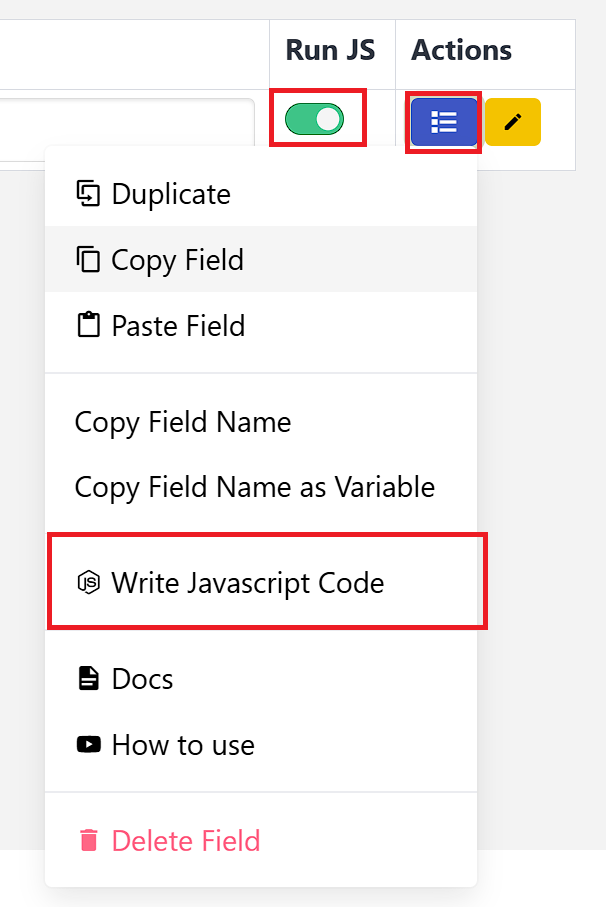
How to open the editor?
Click on the Action button of the field. Image given below.
Global Variable
Access entry data and predefined functions using global variables in your JavaScript code.
| Variable | Type | Description | Usage |
|---|---|---|---|
| $entry | Object | Current entry and Excel data | console.log($entry); |
| $fns | Object | Predefined functions library | console.log($fns); |
Use $entry variable in the javascript code for access entry and excel data.
// ACCESS ENTRY DATA [OBJECT]
console.log($entry);

// PREDEFINE FUNCTIONS [OBJECT]
console.log($fns);

// [1]: STORE DATA IN THE SCRAPER EXCEL (PORTRAIT MODE)
// DATA TYPE: ARRAY
var response = { storeDataInScraper: [] };

// [2]: STORE DATA IN THE CURRENT ENTRY EXCEL ROW (LANDSCAPE MODE)
// DATA TYPE: OBJECT AND ALL OBJECT KEY NAME IS UNIQUE
var response = { storeDataInEntry: {} };

// [3] STORE DATA IN THE ACTIVE/CURRENT FIELD VALUE
var response = { storeDataInField: "String" };

// [4]: SKIP CURRENT FORM
var response = { skipForm: true };

// [5]: SKIP SEGMENT
var response = { skipSegment: true };

// [6]: STOP LOOP
var response = { loopStop: true };

// [7]: RETURN ERROR RESPONSE (BY DEFAULT SET SUCCESS RESPONSE)
var response = { status: false, message: "Error Message" };

// RETURN RESPONSE
$fns.return(JSON.stringify(response));
Important Note
When using storeDataInScraper, storeDataInEntry, or storeDataInField to store Excel data, you must add the Current Entry as Saved field type below the JavaScript field in your form sequence to save the Excel data. Otherwise, data will be inserted but will not update in the extension.
Editor Shortcut Keys
| Shortcut | Action | Description |
|---|---|---|
F11 | Full Screen | Toggle full-screen editor mode |
Ctrl + S | Save | Save current code |
Ctrl + Z | Word Wrap | Toggle word wrapping |
Shift + Alt + L | Debug Console Log | Insert console.log statement |
Predefine Functions
Access powerful built-in functions through the $fns object.
Event Functions
| Function | Description | Parameters |
|---|---|---|
| triggerEvent | Trigger DOM events on elements | element, eventArray |
| triggerMouseEvent | Trigger mouse events on elements | element, eventArray |
| wait | Pause execution for specified milliseconds | milliseconds |
| trim | Advanced text manipulation | text, options |
| elementExists | Check if element exists in DOM | selectorQuery |
| elementVisible | Check if element is visible | selectorQuery |
| elementInvisible | Check if element is invisible | selectorQuery |
| checkElementVisible | Check element visibility with force option | selectorQuery, isForceCheck |
| checkElementInvisible | Check element invisibility with force option | selectorQuery, isForceCheck |
| checkElementExists | Check element existence with force option | selectorQuery, isForceCheck |
| randomHexColor | Generate random hex color | None |
| getRandomString | Generate random string | length |
| randomBoolean | Generate random boolean | None |
| randomUniqueID | Generate random unique ID | length |
| randomInteger | Generate random integer | min, max |
| randomFloat | Generate random float | min, max, fixed |
| setSessionStorage | Sets a value in session storage | key, value |
| setLocalStorage | Sets a value in local storage | key, value |
| toast | Display a toast notification message | message, duration |
// triggerEvent
await $fns.triggerEvent(element, ["change", "focus"]);

// triggerMouseEvent
await $fns.triggerMouseEvent(element, ["mousedown", "mouseup"]);

// wait
await $fns.wait(1000);

// trim
await $fns.trim(text, isRemoveAllSpace: Boolean, isLowerCase: Boolean, {
  isUpperCase: Boolean,
  isRemoveSpecialChar: Boolean,
  isRemoveExtraSpace: Boolean,
  replaceChar: Array[2]
});

// elementExists
$fns.elementExists(selectorQuery);

// elementVisible
$fns.elementVisible(selectorQuery);

// elementInvisible
$fns.elementInvisible(selectorQuery);

// checkElementVisible
$fns.checkElementVisible(selectorQuery, isForceCheck = false);

// checkElementInvisible
$fns.checkElementInvisible(selectorQuery, isForceCheck = false);

// checkElementExists
await $fns.checkElementExists(selectorQuery, isForceCheck = false);

// randomHexColor
await $fns.randomHexColor();

// getRandomString
await $fns.getRandomString(length: Number);

// randomBoolean
await $fns.randomBoolean();

// randomUniqueID
await $fns.randomUniqueID(length: Number);

// randomInteger
await $fns.randomInteger(min: Number, max: Number);

// randomFloat
await $fns.randomFloat(min: Number, max: Number, fixed: Number);

// setSessionStorage - Sets a value in the session storage for the current domain
$fns.setSessionStorage(key, value);

// setLocalStorage - Sets a value in the local storage for the current domain
$fns.setLocalStorage(key, value);

// toast - Display a toast notification message
$fns.toast("Hi, Excellent Data Filler", 3000);
Excel Data Functions
Functions for reading and adding Excel data dynamically within JavaScript code.
| Function | Description | Parameters |
|---|---|---|
| $fns.excel.add | Add a new entry to the site Excel data | dataArray, isOverwrite |
| $fns.excel.get | Retrieve current site Excel data | None |
// Add new entry in site excel data
let isUpdated = await $fns.excel.add([{ column: "Value" }], false);

// Get site excel data
let excelData = await $fns.excel.get();
Logging Functions
Insert structured log messages during JavaScript execution. These logs are simultaneously sent to both the browser console window and the built-in Extension Logs Viewer.
| Function | Description | Parameters |
|---|---|---|
| $fns.log.success | Logs a success message with optional contextual data | message: String, data?: any |
| $fns.log.error | Logs an error message with optional contextual data | message: String, data?: any |
| $fns.log.warning | Logs a warning message with optional contextual data | message: String, data?: any |
// Success Log
await $fns.log.success("Data filled successfully", { row: 1 });

// Error Log
await $fns.log.error("Submit button not found");

// Warning Log
await $fns.log.warning("Field skipped due to condition", null);
Note
Log entries generated by these functions are displayed in:
- Browser Console Window: Developer Tools Console (
F12orCtrl + Shift + J). - Extension Logs Viewer: Extension dashboard log stream and status bar logs popover.
Custom JavaScript Examples
jQuery Slider Integration
Fill values in jQuery UI sliders programmatically.
Reference: https://jqueryui.com/slider/
$slider = $(".bar");
$slider.slider("value", 100);
$slider.slider("option", "slide").apply($slider, [null, { value: $slider.slider("value") }]);
Override Existing JavaScript Code
Modify or replace existing JavaScript code within the target website. Useful for changing button behavior, functions, or any code snippet on the page.
| Method | Description | Use Case |
|---|---|---|
| Method 1 | Remove onclick attribute and add event listener | Simple button behavior changes |
| Method 2 | Remove element and inject new HTML | Complete element replacement |
| Method 3 | Override JS code by script injection | Function or variable replacement |
Complete Implementation Example:
function submitAction() {
  alert("Submitted.");
}

function resetAction() {
  alert("Reset.");
}

/**
  [METHOD-01] If using `onclick` attribute in the element
*/
// var submitbtn = document.querySelector("#submit")
// if (submitbtn) {
//   submitbtn.removeAttribute('onclick');
//   submitbtn.addEventListener("click", submitAction)
// }

/**
  [METHOD-02] Remove Button and Inject New Button HTML
*/
// var submitbtn = document.querySelector("#submit")
// if (submitbtn) submitbtn.remove();
// var container = document.querySelector("#container")
// if (container) container.insertAdjacentHTML("afterbegin", '<button class="btn btn-success" type="submit" id="submit">Submit</button>')
// var submitbtn = document.querySelector("#submit")
// if (submitbtn) {
//   submitbtn.addEventListener("click", submitAction);
// }

/**
  [METHOD-03] Override JS Code
*/
var actualCode = `
  function submitAction() {
    alert("Submitted.")
  }
`;

var script = document.createElement("script");
script.textContent = actualCode;
(document.head || document.documentElement).appendChild(script);
script.remove();

// Return
$fns.return("1");
Important
Always test your JavaScript code in the browser console before implementing in production forms.
Examples
Learn how to write JavaScript code for common automation tasks like filling inputs, clicking buttons, and interacting with page elements.
Fill Input Field
Fill text into an input field and trigger necessary events.
(async () => {
  // Select the input field
  const inputField = document.querySelector("#username");

  // Set the value
  inputField.value = "[email protected]";

  // Trigger events to notify the page
  await $fns.triggerEvent(inputField, ["input", "change"]);

  // Return success
  $fns.return("1");
})();
Click Button
Click a button and wait for the action to complete.
(async () => {
  // Find the submit button
  const submitButton = document.querySelector("#submit-btn");

  // Click the button
  submitButton.click();

  // Wait for 1 second to allow the action to complete
  await $fns.wait(1000);

  // Return success
  $fns.return("1");
})();
Select Dropdown Option
Select an option from a dropdown menu by value or text.
(async () => {
  // Select by value
  const dropdown = document.querySelector("#country");
  dropdown.value = "USA";
  await $fns.triggerEvent(dropdown, ["change"]);

  // OR Select by visible text
  const options = dropdown.querySelectorAll("option");
  for (let option of options) {
    if (option.textContent.trim() === "United States") {
      dropdown.value = option.value;
      await $fns.triggerEvent(dropdown, ["change"]);
      break;
    }
  }

  $fns.return("1");
})();
Check Checkbox or Radio Button
Check or uncheck checkboxes and select radio buttons.
(async () => {
  // Check a checkbox
  const checkbox = document.querySelector("#terms-checkbox");
  checkbox.checked = true;
  await $fns.triggerEvent(checkbox, ["change", "click"]);

  // Select a radio button
  const radioButton = document.querySelector('input[name="gender"][value="male"]');
  radioButton.checked = true;
  await $fns.triggerEvent(radioButton, ["change", "click"]);

  $fns.return("1");
})();
Wait for Element to Appear
Wait for an element to appear on the page before interacting with it.
(async () => {
  // Wait for element to exist (max 10 seconds)
  const elementExists = await $fns.checkElementExists("#dynamic-content", true);

  if (elementExists) {
    const element = document.querySelector("#dynamic-content");
    element.click();
    $fns.return("1");
  } else {
    // Return error if element not found
    const response = { status: false, message: "Element not found" };
    $fns.return(JSON.stringify(response));
  }
})();
Fill Multiple Fields
Fill multiple form fields in sequence.
(async () => {
  // Fill first name
  const firstName = document.querySelector("#first-name");
  firstName.value = $entry.firstName;
  await $fns.triggerEvent(firstName, ["input", "change"]);

  // Fill last name
  const lastName = document.querySelector("#last-name");
  lastName.value = $entry.lastName;
  await $fns.triggerEvent(lastName, ["input", "change"]);

  // Fill email
  const email = document.querySelector("#email");
  email.value = $entry.email;
  await $fns.triggerEvent(email, ["input", "change"]);

  // Wait a bit before submitting
  await $fns.wait(500);

  // Click submit
  const submitBtn = document.querySelector("#submit");
  submitBtn.click();

  $fns.return("1");
})();
Conditional Logic
Execute different actions based on page conditions.
// Check if error message is visible
const errorExists = $fns.elementVisible(".error-message");

if (errorExists) {
  // Skip this form if there's an error
  const response = { skipForm: true };
  $fns.return(JSON.stringify(response));
} else {
  // Continue with normal flow
  const submitBtn = document.querySelector("#submit");
  submitBtn.click();
  $fns.return("1");
}
Store Data from Page
Extract data from the page and store it in Excel.
// Extract data from the page
const productName = document.querySelector(".product-name")?.textContent.trim();
const productPrice = document.querySelector(".product-price")?.textContent.trim();
const productRating = document.querySelector(".rating")?.textContent.trim();

// Store data in the current entry row (landscape mode)
const response = {
  storeDataInEntry: {
    productName: productName,
    productPrice: productPrice,
    productRating: productRating,
  },
};

$fns.return(JSON.stringify(response));
Request Monitoring Script
Use the following event listener to intercept request details and return custom success/error responses.
async function getDetails(e) {
  var data = e.detail;
  data = JSON.parse(data);
  console.log("CTH: data", data);

  // Return logic
  $fns.return(JSON.stringify({ status: false, message: "Error Message" }));
  // $fns.return(JSON.stringify({ status: true, message: "Success Message" }));
}

// Get Web Request Data
document.addEventListener('CTH-EXCELLENT-FILLER-REQUEST-EVENT', getDetails);
Event Data Output Schema:
{
  "headers": "object",
  "method": "string",
  "status": "number",
  "url": "string"
}
Advanced Element Selection
Use various methods to find and interact with elements.
// By ID
const elementById = document.querySelector("#my-id");

// By Class
const elementByClass = document.querySelector(".my-class");

// By Attribute
const elementByAttr = document.querySelector('[data-test="submit-button"]');

// By XPath (using document.evaluate)
const xpath = "//button[contains(text(), 'Submit')]";
const xpathResult = document.evaluate(
  xpath,
  document,
  null,
  XPathResult.FIRST_ORDERED_NODE_TYPE,
  null
);
const elementByXPath = xpathResult.singleNodeValue;

// Click the found element
if (elementByXPath) {
  elementByXPath.click();
}

$fns.return("1");
Pro Tip
Always use await with asynchronous functions like $fns.wait(), $fns.triggerEvent(), and $fns.checkElementExists() to ensure proper execution order.