Radio Field
Radio fields are used for single-selection options in web forms, where users can choose one option from a group of mutually exclusive choices. They provide various configuration options for optimal radio button interaction behavior.
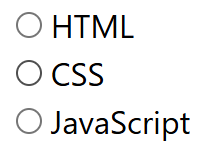
Basic Configuration
Field Properties
| Property | Description | Example |
|---|---|---|
| Field Name | Unique identifier for the field | gender, paymentMethod, size |
| Field Type | Set to Radio for radio button groups | Radio |
| Field Selector Type | Method to locate the field element | Selector, Id, XPath |
| Field Selector Query | Unique address to locate the field | input[name="gender"], #payment |
| Field Value | Data source for radio selection | Excel (.xlsx) column or default value |
Radio Field Settings
Radio Selection Behavior
Configure how radio buttons are selected based on Excel (.xlsx) data values.
Core Behavior:
- Excel Value Priority - Radio selection depends on Excel (.xlsx) column value
- Single Selection - Only one radio button can be selected at a time
- Value Matching - Radio button is selected when its value matches Excel data
Configuration:
- Toggle Switch: Enable/disable radio button selection
- Excel Value Check: System matches Excel (.xlsx) column value with radio button values
- Selection Action: Radio button is selected when value matches
Example Scenarios:
Excel Column Value: "male" → Radio button with value "male" gets selected
Excel Column Value: "female" → Radio button with value "female" gets selected
Excel Column Value: "" (empty) → No radio button selected
Excel Column Value: "other" → Radio button with value "other" gets selected
Set the attribute name of the field's value
Configure which HTML attribute contains the radio button's value.
Purpose:
- Custom Attribute Support - Handle cases where value is not in standard
valueattribute - Flexible Value Detection - Support different HTML attribute structures
- Framework Compatibility - Work with various frontend frameworks
Configuration:
- Toggle Switch: "Set the attribute name of the field's value"
- Attribute Name Input: Specify the custom attribute name (default: "value")
- Custom Attributes: Support for
data-value,name,label, etc.
Common Attribute Examples:
Standard: value="option1"
Custom: data-value="option1"
Custom: data-id="option1"
Custom: label="Option 1"
Use Cases:
- Framework Integration - React, Vue, Angular components
- Custom Components - Non-standard HTML structures
- Data Attributes - Values stored in data-* attributes
- Label-based Selection - Selection based on label text
Element Detection Settings
Configure how the extension waits for and interacts with radio button elements.
Wait until element is found in the page
- Purpose: Ensures radio button exists in DOM before interaction
- Use Case: Dynamic content, AJAX-loaded radio groups
- Configuration: Toggle ON/OFF
Wait until element is visible in the page
- Purpose: Ensures radio button is both found and visible
- Use Case: Hidden radio buttons, CSS visibility controls
- Configuration: Toggle ON/OFF
Trigger Javascript Event
Configure JavaScript events to be triggered on the radio button element.
Supported Events:
- click - Triggers when radio button is clicked
- focus - Triggers when radio button receives focus
Excel (.xlsx) Value Handling
Selection Values
- "option1" - Radio button with value "option1" gets selected
- "option2" - Radio button with value "option2" gets selected
- Any matching value - Radio button with matching value gets selected
No Selection Values
- "" (empty) - No radio button selected
- null - No radio button selected
- "none" - No radio button selected (if "none" is not an option)
Invalid Values
- Non-matching value - No radio button selected
- Undefined value - No radio button selected
Custom Attribute Configuration
Standard Value Attribute
html
<input type="radio" name="gender" value="male" /> Male
<input type="radio" name="gender" value="female" /> Female- Attribute: "value"
- Excel Value: "male" or "female"
Data Attribute
html
<input type="radio" name="size" data-value="small" /> Small
<input type="radio" name="size" data-value="large" /> Large- Attribute: "data-value"
- Excel Value: "small" or "large"
Label-based Selection
html
<label for="red">Red</label>
<input type="radio" name="color" id="red" />

<label for="blue">Blue</label>
<input type="radio" name="color" id="blue" />- Attribute: "label" or "textContent"
- Excel Value: "Red" or "Blue"
Troubleshooting
Radio Button Not Selecting
- Check selector accuracy
- Verify element visibility
- Test with different selectors
- Check Excel (.xlsx) value format
Custom Attribute Issues
- Verify attribute name is correct
- Check attribute value extraction
- Test with different attribute types
- Verify framework compatibility
Value Matching Problems
- Ensure exact value matching
- Check case sensitivity
- Test with different value formats
- Verify radio group association
Events Not Triggering
- Verify event selection
- Check JavaScript console for errors
- Test individual events first
- Ensure radio button is focusable
Next Steps
 Field Types — Learn about different field types
 Field Response Actions — Configure response behaviors
 Excel Template — Prepare Excel (.xlsx) templates
 Site Settings — Configure site-wide automation settings