Skip to content

Fetch Header-Value Data

Extract key-value pairs from web pages where data is displayed in a header-value format, such as definition lists or labeled data sections.

Overview

The Fetch Header-Value Data field type allows you to extract data that is structured as key-value pairs on a web page. This is commonly used for extracting information from product details, user profiles, specifications, or any content where labels (headers) are paired with corresponding values.

Configuration Options

OptionDescriptionRequired
Selector TypeType of selector (CSS or XPath)Yes
Selector QuerySelector for the parent container holding all key-value pairsYes
If Header name is present then turn on the optionEnable when header/label elements exist in the structureNo
Query of HeadersSelector for the header/label elements (when header option is enabled)Conditional
Query of ValuesSelector for the value elementsYes
Wait until element is found in the pageWait for elements to appear before scrapingNo

Header Detection

When "If Header name is present then turn on the option" is enabled, you must provide both:

  • Query of Headers: Selector to find the header/label elements
  • Query of Values: Selector to find the corresponding value elements

When disabled, only the "Query of Values" field is required, and the extension will extract values without headers.


How It Works

The extension identifies pairs of header (label) and value elements within a container, then extracts them as key-value pairs.

Common HTML Patterns:

Pattern 1: Definition List (<dl>)

html
<dl class="product-specs">
  <dt>Brand</dt>
  <dd>TechCo</dd>
  
  <dt>Model</dt>
  <dd>XM-2000</dd>
  
  <dt>Warranty</dt>
  <dd>2 Years</dd>
</dl>

Configuration:

  • Selector Query: .product-specs
  • If Header name is present: ✅ Enabled
  • Query of Headers: dt
  • Query of Values: dd

Excel Output:

BrandModelWarranty
TechCoXM-20002 Years

Pattern 2: Div with Labels and Values

html
<div class="user-info">
  <div class="info-row">
    <span class="label">Name:</span>
    <span class="value">John Doe</span>
  </div>
  <div class="info-row">
    <span class="label">Email:</span>
    <span class="value">[email protected]</span>
  </div>
  <div class="info-row">
    <span class="label">Phone:</span>
    <span class="value">555-0123</span>
  </div>
</div>

Configuration:

  • Selector Query: .user-info
  • If Header name is present: ✅ Enabled
  • Query of Headers: .label
  • Query of Values: .value

Excel Output:

NameEmailPhone
John Doe[email protected]555-0123

Pattern 3: List Items with Strong Tags

html
<ul class="details">
  <li><strong>Color:</strong> Blue</li>
  <li><strong>Size:</strong> Large</li>
  <li><strong>Material:</strong> Cotton</li>
</ul>

Configuration:

  • Selector Query: .details
  • If Header name is present: ✅ Enabled
  • Query of Headers: strong
  • Query of Values: li (with text extraction logic)

Excel Output:

ColorSizeMaterial
BlueLargeCotton

Usage Examples

Example 1: Product Specifications with Headers

Field Type: Fetch Header-Value Data
Selector Type: CSS Selector
Selector Query: .product-specifications
If Header name is present then turn on the option: ✅ Enabled
Query of Headers: dt
Query of Values: dd

HTML:

html
<dl class="product-specifications">
  <dt>Processor</dt>
  <dd>Intel Core i7</dd>
  <dt>RAM</dt>
  <dd>16GB DDR4</dd>
  <dt>Storage</dt>
  <dd>512GB SSD</dd>
</dl>

Result: Creates Excel columns Processor, RAM, and Storage with their corresponding values.


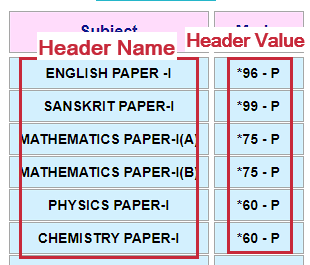
Example 2: Exam Scores with Headers (Real-World Example)

Field Type: Fetch Header-Value Data
Selector Type: CSS Selector
Selector Query: .exam-results
If Header name is present then turn on the option: ✅ Enabled
Query of Headers: .header-name
Query of Values: .header-value

HTML:

html
<div class="exam-results">
  <div class="subject">
    <span class="header-name">ENGLISH PAPER -I</span>
    <span class="header-value">*96 - P</span>
  </div>
  <div class="subject">
    <span class="header-name">SANSKRIT PAPER-I</span>
    <span class="header-value">*99 - P</span>
  </div>
  <div class="subject">
    <span class="header-name">MATHEMATICS PAPER-I(A)</span>
    <span class="header-value">*75 - P</span>
  </div>
  <div class="subject">
    <span class="header-name">MATHEMATICS PAPER-I(B)</span>
    <span class="header-value">*75 - P</span>
  </div>
  <div class="subject">
    <span class="header-name">PHYSICS PAPER-I</span>
    <span class="header-value">*60 - P</span>
  </div>
  <div class="subject">
    <span class="header-name">CHEMISTRY PAPER-I</span>
    <span class="header-value">*60 - P</span>
  </div>
</div>

Excel Output:

ENGLISH PAPER -ISANSKRIT PAPER-IMATHEMATICS PAPER-I(A)MATHEMATICS PAPER-I(B)PHYSICS PAPER-ICHEMISTRY PAPER-I
*96 - P*99 - P*75 - P*75 - P*60 - P*60 - P

Example 3: User Profile with Dynamic Content

Field Type: Fetch Header-Value Data
Selector Type: XPath
Selector Query: //div[@class='profile-data']
If Header name is present then turn on the option: ✅ Enabled
Query of Headers: .field-label
Query of Values: .field-value
Wait until element is found in the page: ✅ Enabled

HTML:

html
<div class="profile-data">
  <div class="field">
    <span class="field-label">Username</span>
    <span class="field-value">johndoe123</span>
  </div>
  <div class="field">
    <span class="field-label">Member Since</span>
    <span class="field-value">2020-01-15</span>
  </div>
</div>

Result: Extracts username and member date into corresponding Excel columns.


Column Naming

Excel column names are automatically created from the header/label text:

  • Exact Text: Uses the text content of the header element
  • Cleaned: Removes special characters like colons (:) and extra whitespace
  • Trimmed: Removes leading and trailing spaces

Example:

Header TextExcel Column Name
Name:Name
Email Email
Phone Number:Phone Number

Use Cases

E-commerce Product Details

Extract product specifications, features, and attributes from product pages.

User Profiles

Scrape user profile information displayed in labeled sections.

Order Information

Extract order details like order number, date, status, and tracking information.

Real Estate Listings

Scrape property details like bedrooms, bathrooms, square footage, and price.

Vehicle Specifications

Extract car specifications like make, model, year, mileage, and features.

Job Listings

Scrape job details like title, company, location, salary, and requirements.


Tips

Header Detection

Enable "If Header name is present then turn on the option" when your data has separate header/label elements. This allows you to specify both header and value selectors for accurate extraction.

Container Selection

Choose the smallest container that includes all the key-value pairs you want to extract. This ensures you don't accidentally capture unrelated data.

Paired Elements

Ensure that headers and values are properly paired in the HTML structure. The extension matches them based on their order within the container.

Dynamic Content

For dynamically loaded content, enable "Wait until element is found in the page" to ensure all data is loaded before scraping.

Cleaning Labels

The extension automatically removes common punctuation like colons from labels. "Price:" becomes "Price" in Excel.


Troubleshooting

Missing Data

  • Verify the container selector includes all desired elements
  • Check that "If Header name is present then turn on the option" is correctly configured
  • Ensure Query of Headers and Query of Values selectors are correct
  • Verify elements are not hidden with CSS

Mismatched Pairs

  • Verify headers and values are in the same order
  • Check for extra elements between header-value pairs
  • Ensure the HTML structure is consistent
  • Confirm header detection option matches your HTML structure

Incorrect Column Names

  • Check for special characters in header text
  • Verify headers contain meaningful text
  • Look for hidden or empty header elements
  • Ensure "Query of Headers" selector targets the correct elements

Advanced Patterns

Nested Structures

html
<div class="specs">
  <div class="spec-group">
    <h4>Display</h4>
    <dl>
      <dt>Size</dt><dd>15.6"</dd>
      <dt>Resolution</dt><dd>1920x1080</dd>
    </dl>
  </div>
</div>

Strategy: Target the specific <dl> element to extract only display specifications.


Mixed Content

html
<div class="info">
  <p><strong>Category:</strong> Electronics</p>
  <p><strong>Brand:</strong> TechCo</p>
  <p><strong>SKU:</strong> TC-12345</p>
</div>

Configuration:

  • Selector Query: .info
  • If Header name is present: ✅ Enabled
  • Query of Headers: strong
  • Query of Values: p (extract text after the strong tag)


Example Image

Fetch Header-Value Data Example

Visual example showing how header-value pairs are extracted from a web page.

Released under the MIT License.