Field Response Action
Field Response Actions allow you to define custom automated behaviors triggered immediately when a field operation completes. Depending on the execution outcome—Success, Error, or Skip—you can automate conditional branching, navigate pages, trigger segments, update datasets, or handle error recovery.
Overview
During automation, every field interaction yields an execution status:
- Success: The target element was located and the configured action (typing, selecting, clicking, or running code) executed without errors.
- Error: The element could not be found, timed out, or threw a DOM exception during interaction.
- Skip: The field was intentionally bypassed due to configured skip conditions or missing data rules.
By attaching response actions to these channels, you transform linear form filling into resilient, intelligent automation pipelines that adapt dynamically to web page behaviors.
Available Action Types
When configuring a response action for any status channel, you can select from the following actions:
| Action Type | Behavior | Key Parameters / Use Cases |
|---|---|---|
| Open a URL | Navigates the current browser tab to a specified URL. | Target URL (supports static URLs or dynamic variables). Useful for redirecting after submission. |
| Reload Page | Refreshes the active web page. | Useful for resetting state or recovering from unexpected page rendering issues. |
| Re-Execute Form | Restarts the current form automation from the very first field. | Useful for retry loops after dynamic DOM reloads or validation resets. |
| Click on Element | Simulates a mouse click on a specified target selector or XPath. | Target element selector. Used to close modal popups, dismiss dialogs, or click confirmation buttons. |
| Execute Segment | Triggers execution of a modular, reusable routine. | Segment Name. Enables modular sub-routines (e.g., OTP entry, captcha solving, or address wizards). |
| Set Local Data | Stores a key-value pair in extension local memory. | Storage Key & Value. Passes dynamic tokens or scraped values across fields and forms. |
| Remove Local Data | Deletes a stored key from extension local memory. | Storage Key. Cleans up temporary session flags or cache keys. |
| Mark Entry As Saved | Marks the active data row as completed in extension memory. | Prevents reprocessing the same spreadsheet record and updates the status indicator. |
| Go to Next Entry | Increments row index to fetch the next data record. | Automatically advances to the next spreadsheet row in batch processing routines. |
| Skip Segment | Bypasses remaining fields in the currently active segment. | Skips non-applicable branch logic inside reusable routines. |
| Skip Form | Aborts execution of remaining fields in the active form. | Skips subsequent form steps and transitions to the next form or loop iteration. |
| Stop Loop | Halts the active repeating loop sequence. | Immediately exits loop execution when a terminal condition or error is encountered. |
Field Success Response Action
The Success Response Action executes whenever a field operation completes without error.
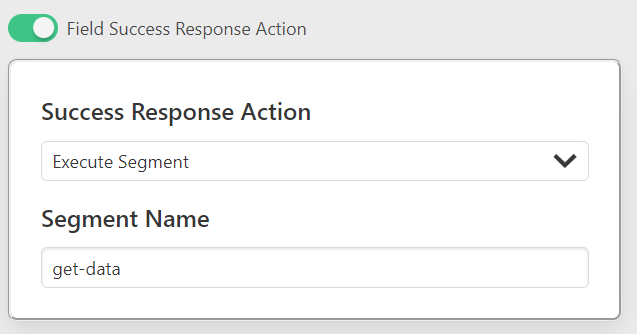
Configuration Steps
- In the Field Settings sidebar, scroll to Response Action Settings.
- Toggle ON Field Success Response Action.
- Select your desired action from the dropdown menu (e.g.,
Execute Segment,Click on Element, orMark Entry As Saved). - Provide any required parameter (such as the target selector or segment name).
Common Use Cases
- Triggering Submission: Click the "Submit" or "Continue" button immediately after filling the final form input.
- Dynamic Segment Branching: Run an auxiliary segment when an optional checkbox or toggle is successfully enabled.
- Data Persistence: Save a generated transaction ID into local storage with Set Local Data.
Field Error Response Action
The Error Response Action executes when a field fails to execute (e.g., element not found within timeout, target element disabled, or network failure).
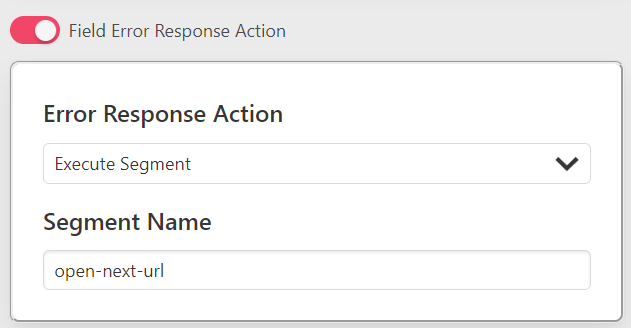
Configuration Steps
- In the Field Settings sidebar, scroll to Response Action Settings.
- Toggle ON Field Error Response Action.
- Select an error recovery action from the dropdown menu (e.g.,
Reload Page,Click on Element, orSkip Form). - Configure any associated target parameters.
Common Use Cases
- Self-Healing Automation: If a dynamic modal dialog blocks the input, use Click on Element to close the dialog.
- Graceful Degradation: If an optional element is missing, use Skip Form or log the error rather than crashing the workflow.
- Page Recovery: Trigger Reload Page if an asynchronous API call failed to populate necessary dropdown options.
Field Skip Response Action
The Skip Response Action executes whenever a field is deliberately bypassed by condition rules (such as value matching, text matching, or spreadsheet conditions).
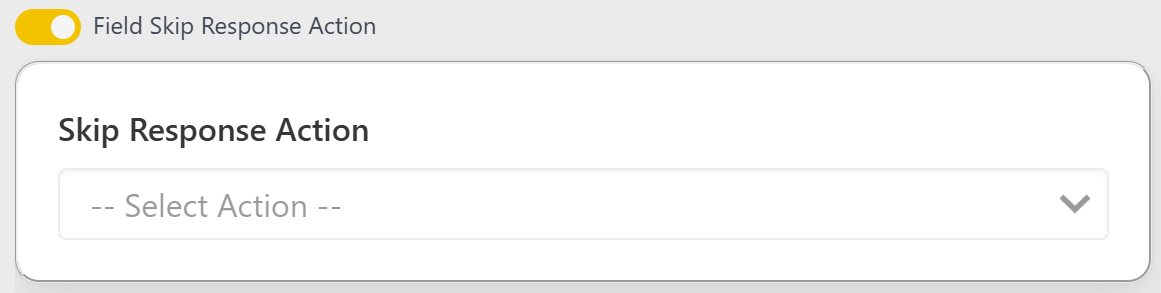
Configuration Steps
- In the Field Settings sidebar, scroll to Response Action Settings.
- Toggle ON Field Skip Response Action.
- Select the follow-up behavior from the dropdown menu (e.g.,
Execute Segment,Skip Segment, orGo to Next Entry).
Common Use Cases
- Conditional Branching: If a primary field is skipped because the user selected "Cash" instead of "Card", execute an alternate payment segment.
- Batch Processing Navigation: When a row has an empty identifier, trigger Go to Next Entry to advance cleanly to the next record.
- Form Skipping: If pre-requisite conditions are not met, skip the rest of the form with Skip Form.
Workflow Examples
Example 1: Multi-Step Wizard Progression
- Field: "Last Name" Input (Last field on Step 1)
- Success Action:
Click on Elementtargetingbutton#btn-next-step - Result: Once the final field on Step 1 is filled, the extension automatically clicks "Next", advancing to Step 2 without manual intervention.
Example 2: Error Recovery with Popups
- Field: "Submit Order" Button
- Error Action:
Click on Elementtargeting.modal-close-btn - Result: If an unexpected promotional modal blocks the submit button, the error handler dismisses the modal.
Example 3: Segment Chaining for Verification
- Field: "Enter Verification Code"
- Success Action:
Execute Segmentwith valueProcess-KYC-Approval - Result: Successfully filling the code triggers the secondary KYC verification routine.
Best Practices
- Avoid Infinite Loops: When using
Re-Execute FormorReload Pageon error, ensure prerequisite conditions will change on reload to prevent infinite retry cycles. - Combine with Timing Delays: For dynamic Single Page Applications (SPAs), set appropriate Before/After delays in Field Settings so DOM updates settle before response actions trigger.
- Monitor via Logs: Track response action triggers and status switches inside the built-in Logs dashboard.


