Program Helper Companion Guide
The Program Helper is an essential companion application designed to work alongside the Excellent Data Filler browser extension. Because modern browsers enforce strict security sandboxes that prevent extensions from directly manipulating local files, native OS dialogs, or external desktop software, the Program Helper acts as a secure native bridge to unlock advanced operating-system automation.
Overview
By default, browser extensions cannot interact with Windows File Explorer dialogs, write files directly to disk without prompts, or simulate OS-level keyboard and mouse events. The Program Helper runs locally on your computer to bridge this gap, granting the extension elevated automation capabilities while keeping all data processing 100% on your machine.
Core Capabilities Unlocked
| Automation Category | Dependent Field Types | Capability Description |
|---|---|---|
| Automated File Uploads | Upload File | Automatically opens and populates native Windows file dialogs to upload single files, multiple files, or entire directories from local disks. |
| Silent PDF Generation | Save as PDF | Captures web pages as clean, formatted PDF documents and saves them directly to specified local folders without manual "Save As" prompts. |
| Session Cookie Import | Import Cookies | Injects authenticated session cookies into the active browser profile from local session files. |
| Desktop Window Control | Program Helper Fields | Focuses external desktop application windows (X-Focus Application Window) and keeps target windows pinned on top (X-WinAlwaysOnTop). |
| Native Hardware Simulation | Program Helper - Advance | Sends genuine OS-level keystrokes (X-Send), key releases (X-KeyWait), mouse clicks at screen coordinates (X-MouseClick), and window control actions (X-ControlClick). |
| Filesystem & Screen Verification | Program Helper - Advance | Validates local file and folder existence using wildcard patterns (FileExist), checks file sizes (X-FileGetSize), extracts extensions (X-FileExtension), and performs desktop image matching (X-ImageSearch). |
Installation
Prerequisites
Before installing the Program Helper, ensure your system meets the following requirements:
- Operating System: Windows 10 or Windows 11 (64-bit)
- Privileges: Administrator permissions on your local Windows account (required during initial installation to register the native bridge)
- Supported Browsers: Google Chrome, Microsoft Edge, Brave, Opera, Vivaldi, or any Chromium-based browser running the Excellent Data Filler extension
- Disk Space: Approximately 15 MB free disk space
Download and Install
Step 1: Download the Installer
Download the official installer for your Windows system from the table below:
| Platform | Download Link | File Size | Version | Status |
|---|---|---|---|---|
| Windows (64-bit) | Download v2.9 | ~3 MB | 2.9 | Latest (Recommended) |
| Windows (64-bit) | Download v2.8 | ~3 MB | 2.8 | Previous Stable |
| Windows (64-bit) | Download v2.7 | ~3 MB | 2.7 | Legacy Release |
Always Use Latest
We recommend using v2.9 or later for the best compatibility with recent Windows 11 updates and Chromium security policies.
Step 2: Handle Windows SmartScreen (If Prompted)
Because the Program Helper interacts with native OS automation and is distributed independently without a paid enterprise certificate, Microsoft Defender SmartScreen may display an alert stating "Windows protected your PC":
- Click the "More info" link on the SmartScreen dialog.
- Click the "Run anyway" button to proceed with the setup.
Step 3: Run the Setup Wizard
- Locate the downloaded
.exefile (e.g.,edf-extension-helper-installer-v2.9.exe). - Right-click the file and select "Run as administrator".
- Follow the on-screen installation prompts to complete the setup.
- Once installation completes, the Program Helper starts automatically and places an icon in the Windows Taskbar Notification Area (System Tray).
Verifying the Connection
After installation, verify that the browser extension can communicate with the local helper application.
Method 1: Check the Windows System Tray
Look at the bottom-right corner of your Windows taskbar (expand the hidden notification icons arrow if needed). The Program Helper icon should be visible and active. Right-clicking this icon allows you to view status, restart the service, or exit.
Method 2: Extension In-App Connection Check
You can verify the connection directly within the extension form builder whenever configuring a helper-dependent field:
- Open the Excellent Data Filler extension and edit or add an Upload File field.
- Locate the Check Connection button in the field configuration panel:
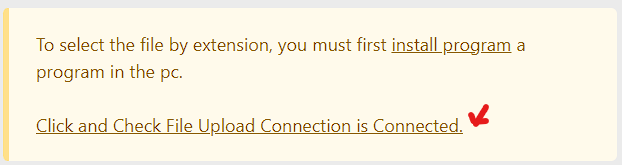
- Click "Click and Check File Upload Connection is Connected" (or the corresponding "Click and Check Cookies Connection is Connected" button for cookie imports).
- A green confirmation badge indicates the native bridge is successfully connected and responding.
Architecture & Security
The Program Helper is designed with security and data privacy as foundational requirements:
Local Loopback Communication Only
- The extension communicates with the helper program exclusively over local loopback (
127.0.0.1/localhost) or Chromium Native Messaging. - No network ports are exposed to external networks or the public internet.
Zero Cloud Telemetry & Data Privacy
- No Remote Servers: The helper program never transmits files, form values, cookies, or activity logs to any external server or cloud service.
- Local Execution: All file handling, PDF conversions, and keystroke simulations occur entirely within your local Windows environment.
- Explicit Scope: The helper only performs actions explicitly defined in your configured site forms (such as opening the specific file path specified in your Excel template).
File & System Permissions
- Scoped File Access: The helper only reads or attaches files whose paths are specified in your automation workflows or Excel (
.xlsx) datasets. - No Background File Modifications: The program does not alter system registries or modify operating system configuration files.
Troubleshooting
Common Issues & Solutions
| Issue | Root Cause | Solution |
|---|---|---|
| "Helper Program Not Found" or Disconnected | Helper process is not running or was terminated | 1. Open the Windows Start Menu, search for EDF Extension Helper, and launch it. 2. Confirm the icon appears in the Windows System Tray. 3. Restart your browser. |
| Windows SmartScreen Blocks Setup | Windows flags independently distributed automation utilities | Click More info on the SmartScreen blue banner, then click Run anyway. |
| Antivirus Software Blocks Helper | Heuristic scanner flags keyboard simulation hooks | Add the installation folder (typically C:\Program Files\EDF Extension Helper\ or %LocalAppData%\Programs\EDF Extension Helper\) to your antivirus exclusions. |
| File Dialog Does Not Open During Upload | Incorrect file path format or target input not clickable | 1. Ensure the file path uses valid Windows syntax (C:\Folder\Document.pdf).2. Verify that the target website's <input type="file"> element is not covered by modal overlays.3. Check the Logs dashboard for execution details. |
| PDF Generation Produces Blank File | Insufficient page render wait time | Increase the Wait Before Print delay in the field settings to ensure all dynamic assets finish loading before PDF conversion. |
| Import Cookies Fails | Local session file missing or corrupted | Re-export the cookies JSON file and verify the file path in field settings. |
Windows Defender Exclusion Guide
If Windows Defender or third-party security software blocks the helper binary from executing keyboard/mouse automation:
- Open Windows Security from the Start Menu.
- Navigate to Virus & threat protection → Virus & threat protection settings → Manage settings.
- Scroll down to Exclusions and click Add or remove exclusions.
- Click Add an exclusion, select Folder, and choose the Program Helper installation directory.
- Save settings and launch the helper program again.
Related Documentation
 Upload File Field Type — Configure automated single, multiple, and directory file uploads
- Save as PDF Field Type — Automate webpage PDF generation and local saving
 Program Helper Field Types — Comprehensive reference for desktop automation (
X-*) fields- Browser Actions & Cookies — Import authentication cookies with helper support
 Extension Settings — Global extension configuration
- Execution Logs Dashboard — Monitor real-time status and troubleshoot field errors