Field Action Status Checker
The Field Action Status Checker field type evaluates the execution outcome, boolean status, and status messages of previously executed fields within the active form or workflow.
By defining multi-condition logic with comparison operators and logical grouping, this field type acts as a conditional decision gate. If the configured conditions match, it returns Success; otherwise, it returns Error, allowing you to trigger customized Field Response Actions.
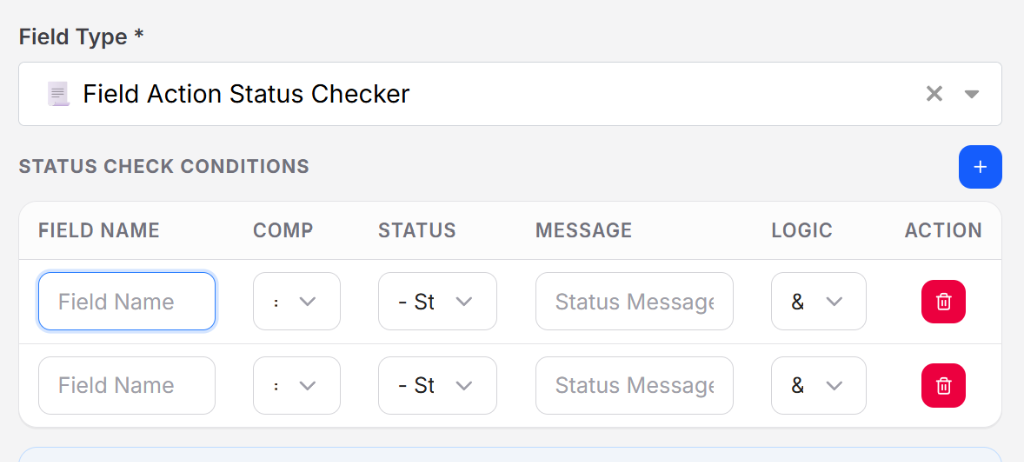
Overview & Execution Model
During form automation, every field that executes generates an internal status (true for success, false for failure) and an associated status message.
The Field Action Status Checker lets you query these past outcomes:
| Evaluated Condition Result | Return Status | Triggered Channel |
|---|---|---|
| All conditions match (Evaluates to True) | Success | Executes configured Field Success Response Action |
| Conditions do not match (Evaluates to False) | Error | Executes configured Field Error Response Action |
Status Check Conditions Configuration
Click the blue + button in the header of the Status Check Conditions table to add one or more condition evaluation rows:
| Column | Type | Description |
|---|---|---|
| FIELD NAME | Text Input | The exact label or name of the target field to inspect from earlier in the form sequence. |
| COMP | Dropdown | The comparison operator (== or !=). |
| STATUS | Dropdown | Target boolean status to verify (true, false, or - Status to omit). |
| MESSAGE | Text Input | Expected status message or substring generated by the field action. |
| LOGIC | Dropdown | Logical connector and parenthesis grouping for combining multiple condition rows. |
| ACTION | Delete Button | Red trash icon to remove the condition row. |
Condition Operator Reference
1. Comparison Operators (COMP)
Controls how the target field's actual result is compared against your configured criteria:
| Operator | Name | Description |
|---|---|---|
== | Equal | Evaluates to true only if the actual field status/message exactly matches the criteria. |
!= | Not Equal | Evaluates to true if the actual field status/message differs from the criteria. |
2. Status Options (STATUS)
Evaluates the boolean execution result of the target field:
| Option | Meaning | When to Use |
|---|---|---|
- Status | Unset / Ignored | Bypasses boolean checking when you only want to match the status message text. |
true | Action Succeeded | Verifies that the target field executed without errors or element lookup failures. |
false | Action Failed | Verifies that the target field failed, timed out, or threw an error. |
3. Logical Operators & Grouping (LOGIC)
Connects sequential condition rows to form compound logical expressions:
| Operator | Syntax | Description |
|---|---|---|
&& | AND | Both the current condition and the next condition must be true. |
| ` | ` | |
&& ( | AND (Open Group) | Combines with the next condition using AND, beginning a nested parenthesis group. |
| ` | (` | |
) | Close Group | Closes the current nested parenthesis group. |
Configuring Response Actions
After setting up your condition criteria, scroll to Response Action Settings in the field panel to define what happens based on the outcome:
1. Field Success Response Action
Fires when your combined condition rules evaluate to true:
- Execute Segment: Run a specific sub-routine or sequence (e.g., submitting the form or handling an optional step).
- Click on Element: Click a confirmation, submit, or proceed button.
- Go to Next Entry: Advance to the next data row in your uploaded
.xlsxfile. - Open a URL: Navigate to the next URL in your multi-step flow.
2. Field Error Response Action
Fires when your combined condition rules evaluate to false:
- Skip Form: Bypass remaining fields in the current form and transition to the next step.
- Stop Loop: Immediately halt repetitive loops when unexpected results occur.
- Execute Segment: Run a recovery routine (e.g., clear inputs, solve fallback authentication, or log errors).
- Reload Page: Refresh the page to reset form state and attempt execution again.
Practical Examples
Example 1: Verify Critical Fields Before Submitting
Ensure that both a primary input field and a file upload completed successfully before clicking the submit button:
| Row | FIELD NAME | COMP | STATUS | MESSAGE | LOGIC |
|---|---|---|---|---|---|
| 1 | Candidate Email | == | true | (empty) | && |
| 2 | Resume Attachment | == | true | (empty) | (empty) |
- Success Response Action:
Click on Elementtargeting#submit-application-btn. - Error Response Action:
Execute Segmenttargeting a notification segment alerting that required fields are missing.
Example 2: Fallback Branching on Failed Lookup
If an automated address lookup failed, branch to a manual fallback segment:
| Row | FIELD NAME | COMP | STATUS | MESSAGE | LOGIC |
|---|---|---|---|---|---|
| 1 | Auto Fill Address API | == | false | (empty) | (empty) |
- Success Response Action:
Execute SegmenttargetingManual Address Fallback. - Error Response Action: Do nothing (continue normal workflow).
Best Practices
- Field Sequence Order: Always place Field Action Status Checker below the fields it is inspecting. A field must finish execution before its outcome can be checked.
- Field Name Precision: Ensure the name entered in the FIELD NAME column matches the exact label or title configured on the target field.
- Parentheses Balance: When using grouping operators (
&& (or|| (), ensure every opening parenthesis has a corresponding closing parenthesis)to prevent evaluation syntax errors.