Form Error Message
The Form Error Message field type detects on-screen validation or server errors after form interaction without requiring URL redirection or page change matching.
TIP
Key Difference from Form Error Response: Unlike Form Error Response, this field type detects in-page error alerts, banners, or DOM messages on the current URL without requiring "Error Page URL" rules.
When to Use
Use this field type when:
- Forms display error messages dynamically via JavaScript on the same page (e.g., "Email already registered", "Invalid OTP", or "Server Timeout").
- Errors can appear in varying locations across the page (top notifications, inline alerts, or modal popups).
- You want to record the exact error message into your
.xlsxrow record or halt automation safely.
Field Options
| Option | Description |
|---|---|
| Error Response Type | Detection mode used to locate the error (Page text, Alert dialog, Input value, or Element existence). |
| Enter Error Message | Target text strings or patterns to identify error states. |
| Entry Action Type | Whether to halt automation immediately (Stop Entry) or record the message into the spreadsheet (Save Error in the Entry Data). |
| Delay Time Before Run Action | Timeout in milliseconds before executing the follow-up recovery action. |
| Action | Operation to trigger upon error detection (Redirect, Reload, Re-Execute, Click, or Segment). |
Additional Configuration Options
| Option | Description |
|---|---|
| If excel data is not found then don't execute the action | Disables follow-up action if spreadsheet data is not present. |
| If last excel entry completed then don't execute the action | Prevents execution if the error occurs on the final dataset row. |
| If there is no Excel data, update only scraper data in Excel | Restricts workbook updates to scraper outputs. |
| Can error message be anything in this element | Wildcard mode matching any error text found inside the specified element. |
| Remove excel column value from current entry? | Clears the value from memory once processed. |
| Set custom message after error message matched? | Logs a custom status phrase instead of the raw DOM error text. |
Error Response Types
1. Matching Message In Page
Scans the page body or a designated container element for matching error text.
- Message Selector Query (Optional): Limits the search to a specific alert box or validation container.

2. Matching Message In Browser Alert
Detects error alerts triggered via JavaScript alert() popups.
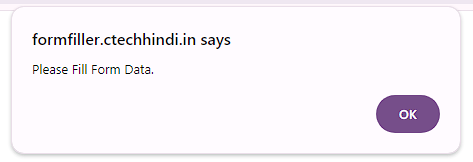
TIP
Enable Hide JavaScript Dialog in Extension Settings to suppress alert popups automatically.
3. Matching Message In Page Element Value
Checks the value attribute of input or status fields for error text.
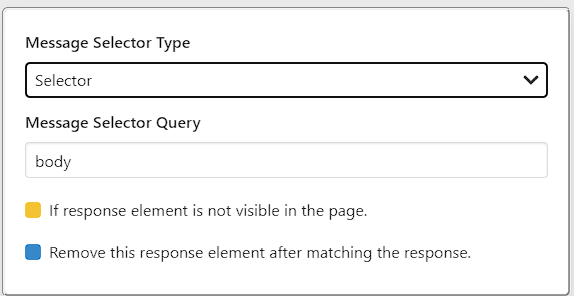
4. Checking Element Exists In Page
Flags an error as soon as a designated error element mounts into the DOM.
- Required Parameter:
Message Selector Querytargeting the error banner or badge (e.g.,.form-error-toast).
Enter Error Message
Specify the error message strings to match. You can configure multiple phrases; if any phrase matches, the error flow is activated.
- Spreadsheet Variables: Use dynamic variables like
Error: {$Email$} is already registered. - Partial Matching: Providing
"already registered"matches any longer sentence containing that substring.

Entry Action Type
Configure how the active spreadsheet entry is treated upon error:
1. Stop Entry
- Halts processing for the current row.
- The record is not marked as saved.
- Ideal when manual user intervention or debugging is required.
2. Save Error in the Entry Data
- Marks the entry as processed.
- Writes the captured error string into the corresponding spreadsheet record for later review.
- Automatically advances automation to the next data row.
Delay Time Before Run Action
Specifies a timeout in milliseconds before executing the follow-up recovery action.
Conversion
1000 milliseconds = 1 second
Follow-up Action Execution
Select what occurs once the error state is confirmed:
| Action | Execution Behavior |
|---|---|
| Redirect to Page | Navigates the active tab to a recovery URL. |
| Re-Execute Form | Restarts the form workflow from the beginning (useful for transient retries). |
| Click on Button | Dispatches a click on a recovery element (e.g., "Dismiss", "Close Modal"). |
| Page Reload | Refreshes the active browser tab. |
| Execute Segment | Triggers an error-handling Segment routine. |
Important Execution Rule
CAUTION
Placement Constraint: When this field executes, all subsequent fields below it in the form list are bypassed. Place Form Error Message at the very end of your form sequence (or right alongside Current Entry as Saved).
[Field 1: Username]             ──> Executes
[Field 2: Password]             ──> Executes
[Field 3: Submit Button]        ──> Executes
[Form Error Message]            ──> Detects Error & Handles Recovery
--------------------------------------------------------------------
[Field 4: Any Lower Field]      ──> DOES NOT EXECUTE (Bypassed)
Common Use Cases
- Logging Duplicates: Automatically mark duplicate records in your
.xlsxfile and continue batch processing without stopping. - Handling Transient Timeouts: Configure Re-Execute Form or Page Reload to retry forms affected by brief gateway drops.
- Modal Dismissal: Click modal close buttons automatically when non-blocking warnings appear.


